
This is a feature of the Feast Plugin
The Modern Mobile Menu replaces the theme header and menu with a mobile and accessibility-optimized layout. As of 2021, with pagespeed, SEO and accessibility being major concerns, the Modern Mobile Menu is designed to be:
- improves user experience by increasing above-the-fold content
- improves user experience with a subscribe button
- improves core web vitals by removing CLS issues
- improves pagespeed by removing render-blocking javascript
- improves SEO by supporting good site structure by making use of index pages for navigation

The formatting and guidelines below have also been applied to the Inline Modern Menu for Desktop.
Jump to:


The navigation bar for the modern mobile menu drastically improves above-the-fold content being displayed. This is a more user-friendly experience, providing the reader with content they came to see instead of a logo that provides no value.
We've also added the magnifying-glass search icon as a visual indicator that the site has search capabilities. Spoiler alert: it opens the same menu as the menu icon, which has the search bar.
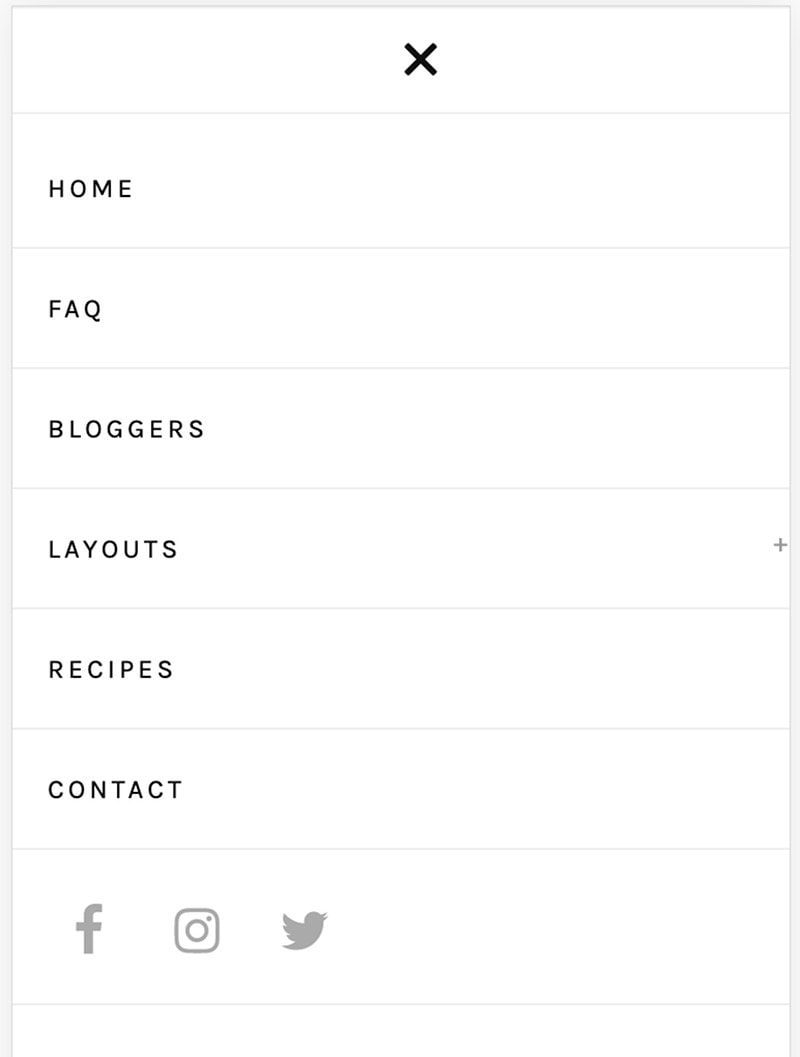
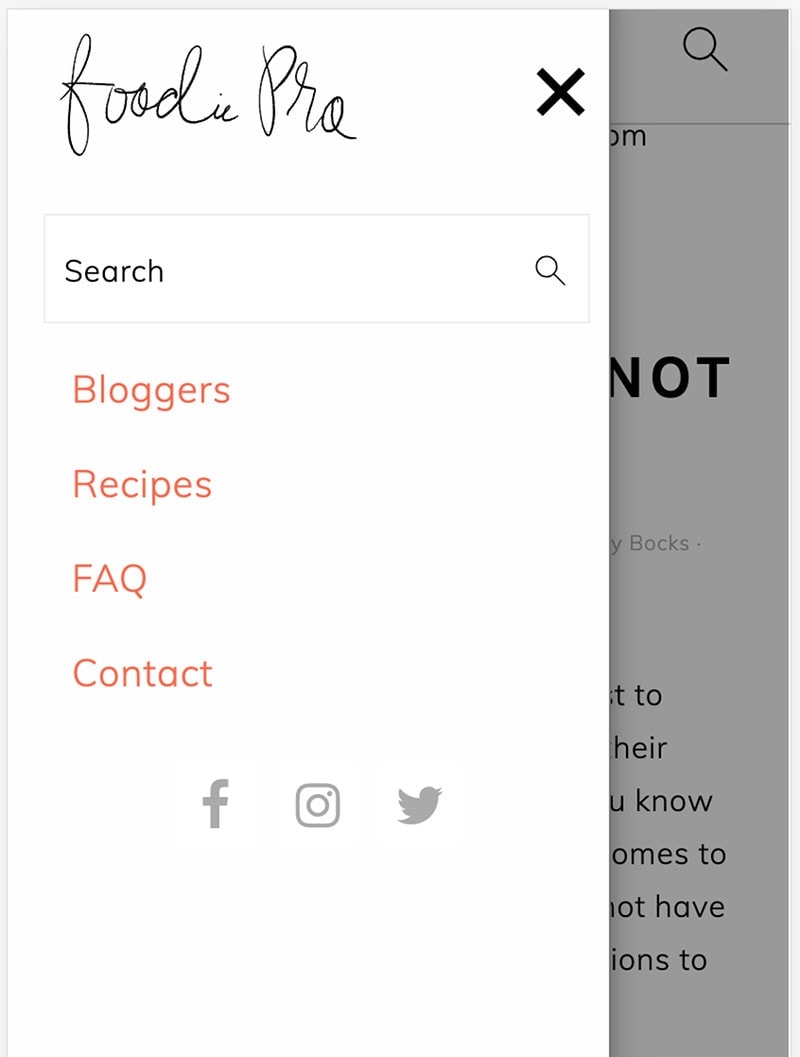
A not-uncommon piece of feedback that we got was that the theme's mobile menu sometimes didn't behave properly - the hamburger menu (the 3 horizontal lines) and the "x" were difficult to click. We've corrected this by beefing it up and getting rid of the javascript used to animate it.
Setup
Setting up the Modern Mobile Menu requires:
- Enable the menu with the checkbox
- Upload and set mobile-only logo at 200x70 px
- Upload and set a mobile-only retina logo at 400x140 px
- note: both of these logos are required
- Create a new menu named feast-modern-mobile-menu
- Add the Feast Social Icons block to the new Feast Layouts
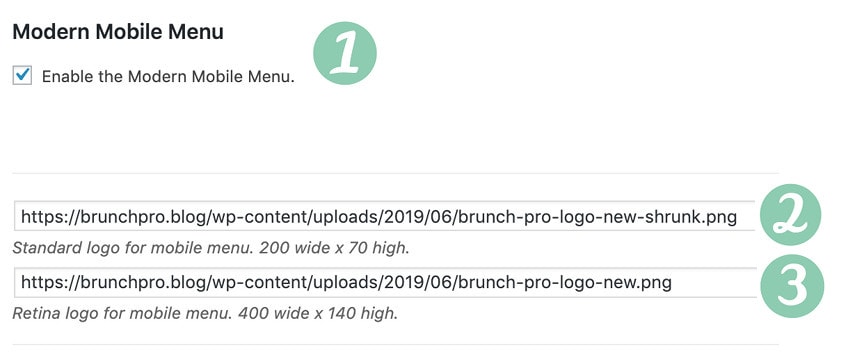
#4 - create a new menu (guidelines for content below) named feast-modern-mobile-menu in Admin > Appearances > Menus:
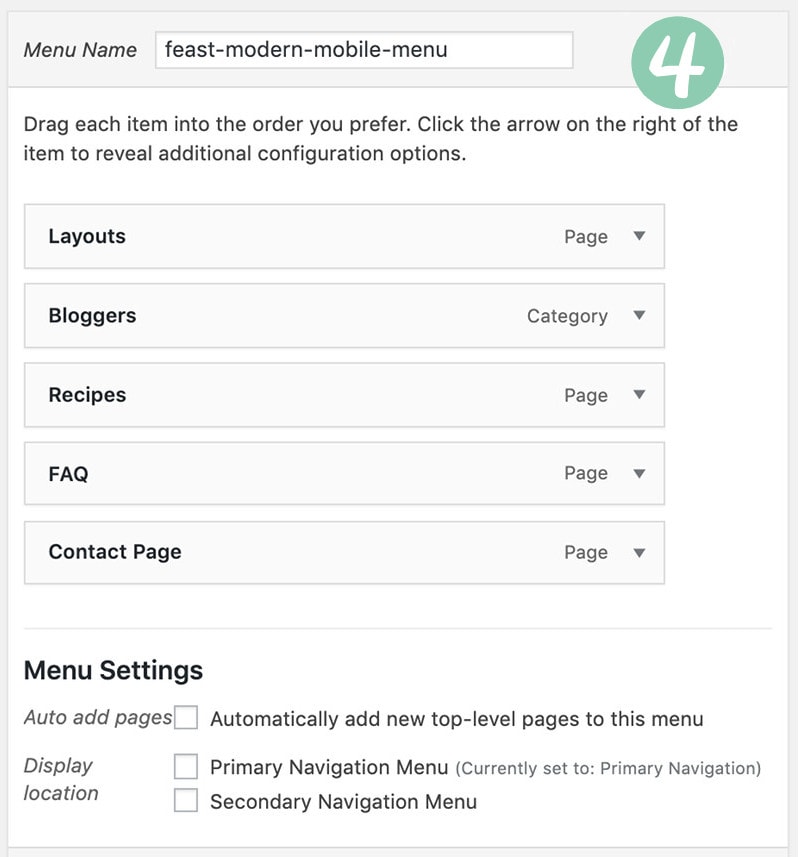
#5 - add the Feast Social Icons block to the new Menu Social Icons Feast Layout widget area in Admin > Feast Plugin > Feast Layouts:
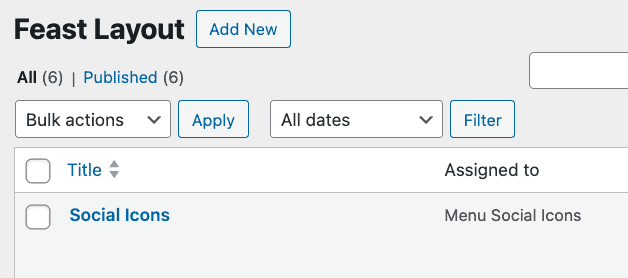
Due to space constraints, only the first 3 icons will be shown on desktop.
Logo
When someone lands on a specific recipe post on your website, they're there to see the recipe, not your header. That's why we've been advocating to shrink the logo for over a year now.
With the modern mobile menu, you can set a new logo (200px wide by 70px tall) to be rendered in-line with the menu bar.

Click Save to save them.
Note: The file must be a .jpg or .png, not WebP or slug.
Due to user experience, pagespeed, CLS and accessibility reasons, there is no option to change the menu or logo size. See rethinking the nav menu. This is set up per our best practices and if you require a large menu or logo, you'll need to pursue a third party solution that we can't support and strongly recommend against.
Menu
Historically, desktop-style dropdown menus have been popular, but these just don't translate well to mobile.
While a drop-down is easy and quick to navigate up-and-down the sub-menu trees, this process is cumbersome and slow on mobile. Your mobile menu should be tight and focused for bother user experience and accessibility.
Create a separate mobile menu named feast-modern-mobile-menu, that links out to your key navigation and call-to-action pages.
- Do not use sub-menus
- Do not link to your homepage (this is what the logo is for)
- Be picky about what goes in here
- Use concise anchor text (eg. "Recipe Index" should simply by "Recipes")
A simple one level navigation menu without submenus can benefit accessibility best practices, user experience and SEO by presenting a flexible page structure conveying information and relationships through deep links, text and content.
Click depth (for site structure) is handled by surfacing the top categories on the Modern Homepage, and linking to all your categories in the Modern Recipe Index.
See this webinar on information architecture for publishers by Casey, Arsen and Andrew.
Check out the Inline Modern Menu for desktop introduced in version 6.1.0.
Social icons
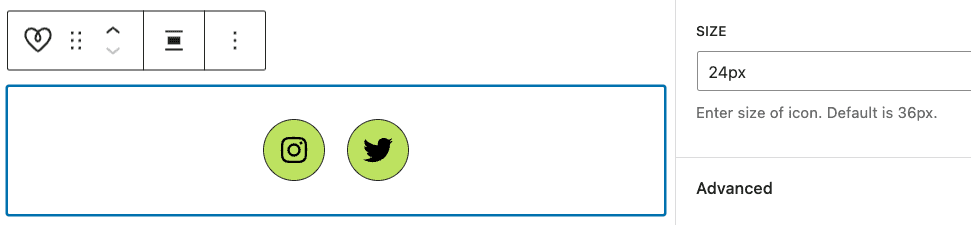
Add the Feast Social Icons block to the new Menu Social Icons Feast Layout layout area in Admin > Feast Plugin > Feast Layouts:

Due to space constraints, only the first 3 icons will be shown on desktop.
Note: Make sure your icons are set to 24px width.
Javascript
The Modern Menu does not use any javascript.
The themes old mobile menus use javascript to display the menu, and was written circa 2014 when this was a good practice.
But this is no longer the case because javascript can cause pagespeed issues, and fails if third party scripts/ads fail to load.
Relying on javascript also causes the menu to fail if (or more likely when) there's a javascript error or conflict, such as those that happen to do ads the billion other plugins out there. A menu is a critical website component and having it fail because of javascript is unacceptable.
Unfortunately, there was nothing out there that accomplished what we wanted to do, without using javascript. We've been looking for a solution for over a year.
So we had to redevelop a new way of doing things, combining some clever new CSS properties to create a CSS-only menu.
We think this works even better than the original menu, but please let us know if you have any feedback.
Pagespeed
With the modern mobile menu being entirely CSS, we can now remove javascript entirely from the theme. This improves pagespeed by:
- not requiring additional file downloads (fewer resource requests)
- eliminating render-blocking javascript on sites without WP Rocket defer js (which all sites should have anyway)
- not requiring the browser to process and render the javascript
This won't prevent other plugins from loading and using javascript, but it keeps the theme pagespeed-friendly.
CLS
The Modern Mobile Menu has been designed to eliminate CLS issues. Make sure to enable the "Add missing image dimensions" setting in WP Rocket, per the SEO for food bloggers tutorial.
Only on scroll-up
We've been asked a few times to have the menu hidden on scroll-down, and only showing on scroll-up. We've looked into this and decided against it because:
- it would require javascript (see above)
- it typically triggers CLS events (see above)
Subscribe button
The subscribe button allows you to remove embedded newsletter forms, as well as javascript and pop ups associated with newsletters that can negatively impact SEO, pagespeed, CLS and accessibility.




This is designed replace:
- intrusive interstitials (eg. pop ups)
- inline sign up forms using javascript from newsletter providers (eg. Mailchimp)
- inline sign up forms using outdated widgets (eg. Genesis eNews)
The reason we want to eliminate popups and inline sign up forms is because they typically cause either:
- CLS issues due to missing dimensions
- pagespeed issues due to javascript calculations
- SEO issues due to the poor pagespeed and CLS above
- accessibility issues due to improper use of headings
- accessibility issues due to missing form labels
- accessibility issues due to poor guidelines around color contrast
Once enabled, simply create a new page with the slug "subscribe" and embed your newsletter form into that one page.
Custom subscribe menu
There is limited space on the mobile version of the Modern Menu, so only a single image/button can be placed next to the logo.
By default, this is a Subscribe image with a link to a /subscribe/ URL on your site, intended for newsletter signups. You can create a new page with the /subscribe/ URL to
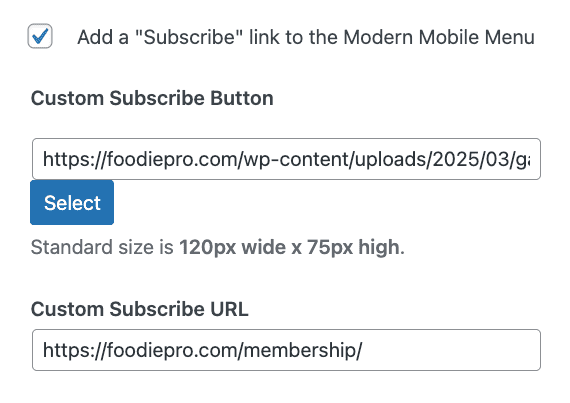
Optionally, you can specify your own subscribe image and a custom link if you prefer to promote something else on mobile. This can be used to promote a:
- membership option
- ebook
- course
Depending on your primary goals.
Shortcomings
There are some limitations to this.
The first is flexibility. The modern mobile menu is not designed to be heavily customized, though you can alter the CSS by making customizations in your "Additional CSS" screen.
Dual or secondary navigation menus
We do not recommend or support dual navigation (or "secondary navigation") menus.
These are not mobile first and they are not accessibility compliant.
Any administrative pages (contact, privacy policy, etc) belong in the footer, not the menu.
Drop down menus
We don't recommend or support drop down menus because they're not mobile-first and have questionable accessibility compliance.
Instead, link directly to navigation pages such as the recipe index or other resources, which drill further into your site.
Please review the Food Blog Site Structure post.
Accessibility
The Modern Mobile Menu has been tested with keyboard navigation and behaves as expected.
Disable Sticky
The Modern Mobile Menu sticks to the top of the screen as the reader scrolls, so that it remains easily accessible. This is a good user experience.
Some ad networks recommend disabling the sticky menu in order to jam in more ads on the page. We believe that the minor improvement in revenue is not worth making the user experience terrible by filling the screen with as many ads as possible.
Focusing on user experience is important for long-term success of your site. Making the user experience worse for a few dollars is short-sighted.
If you still want to disable the sticky menu, navigate to the Customizer > Feast > Menu > Disable Sticky Menu:

Styling
The Modern Menu can be styled to better match your brand, using CSS:

You can customize the background color with:
.feastmobilenavbar {
background: var(--feast-branding-secondary-background) !important;
border-bottom: 4px solid var(--feast-branding-primary) !important;
}
The icons can be colored (version 5.5.0+) with:
.feastmenutoggle svg, .feastsearchtoggle svg {
color: var(--feast-branding-primary) !important;
background: var(--feast-branding-primary-background) !important;
border-radius: 8px;
border: 2px solid var(--feast-branding-primary) !important;
}
The "subsribe" button can be styled (version 5.5.0+) with:
.feastmenutoggle svg, .feastsearchtoggle svg {
color: #F00 !important;
background: #005;
border-radius: 8px;
border:2px solid #CCC;
}
Remember to provide adequate contrast for accessibility.
Troubleshooting
In the Cook'd Pro theme, the recipe index filter breaks due to the removal of the theme's Javascript. Add this code to the code snippets plugin to re-enable it:
https://gist.github.com/feastdesignco/54128474021374785d2a028c5f379be3
Note that we're dropping support this recipe-index setup and filter in 2020, so we consider this a temporary fix. The current Cook'd Pro recipe index was not designed to be mobile-first, and doesn't comply with modern best practices.