
This tutorial is exclusive to members of Feast+
If you are an existing customer with the Feast plugin already configured, you can follow the instructions below to get started.
If you are a brand new Feast customer, you'll need to follow the Feast plugin setup first.
Jump to:
Remove Outdated Customizations
Before starting, you'll want to remove any outdated customizations:
- Remove any outdated CSS in Admin > Appearances > Customize > "Additional CSS"
- Install Foodie Pro 5 (required for styling compatibility with Feast+)
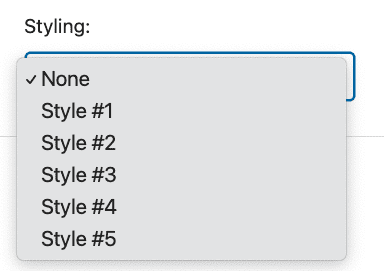
- Disable any "Styling" from your homepage & other pages:
License Key
- Add your Feast+ license key (found here) to the settings page of the Feast Plugin.
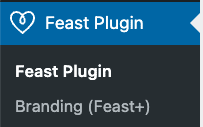
- After a refresh, that will enable the Branding section of the Feast Plugin:

Defining Your Brand
You're now ready to set your customizations! The Branding page is located in the Feast Plugin > Branding (Feast+) and is used to assign your brand colors so that they're applied in the correct places throughout the site.
If you don't have a pre-existing set of colors and definitions, you can use the combinations on our Design Guidance page!
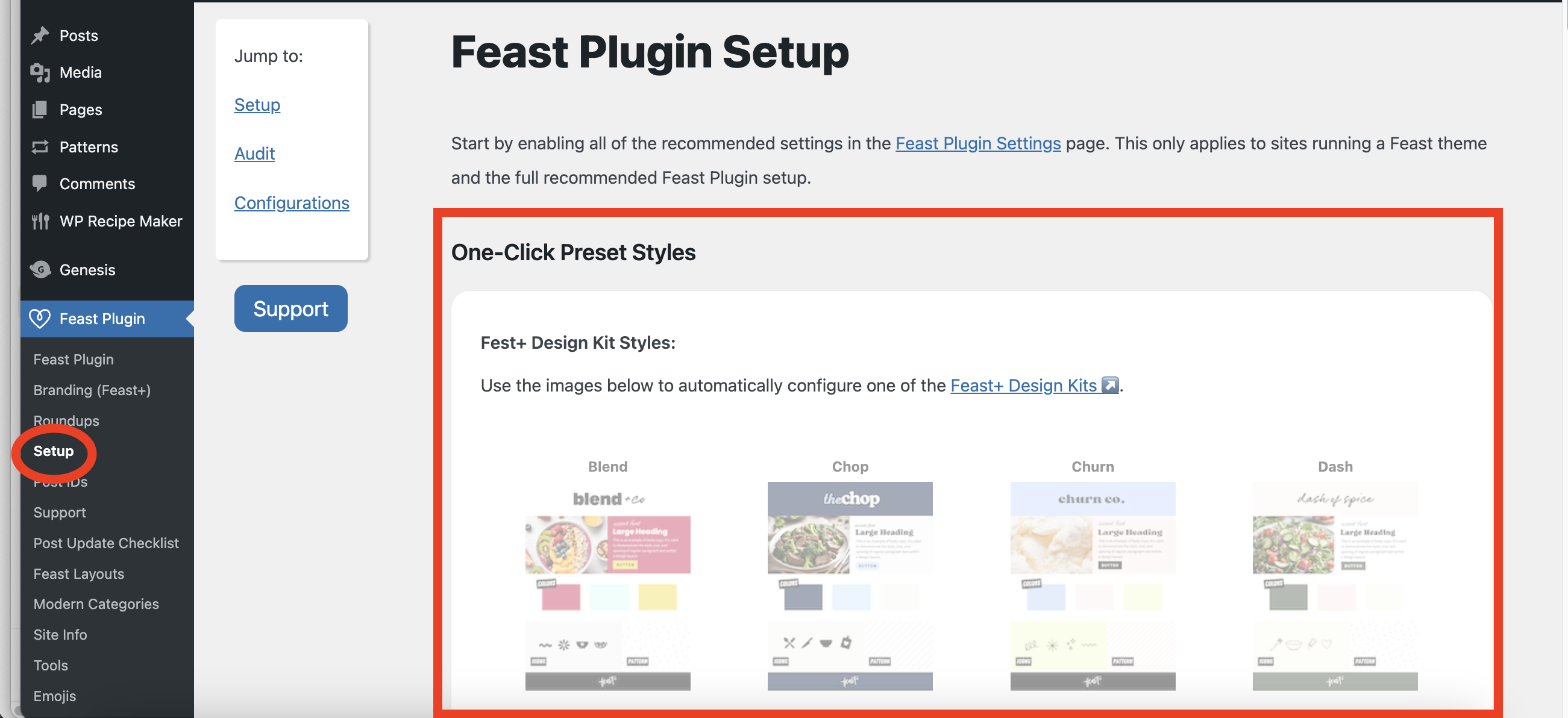
The quickest way to get started is to click on one of the pre-set styles on the Feast Plugin > Setup page, and then customize it.
You can view full demos of each style here.
Travel Presets
Use any of the presets below to match the Feast+ branding page to the 4 travel demo sites.
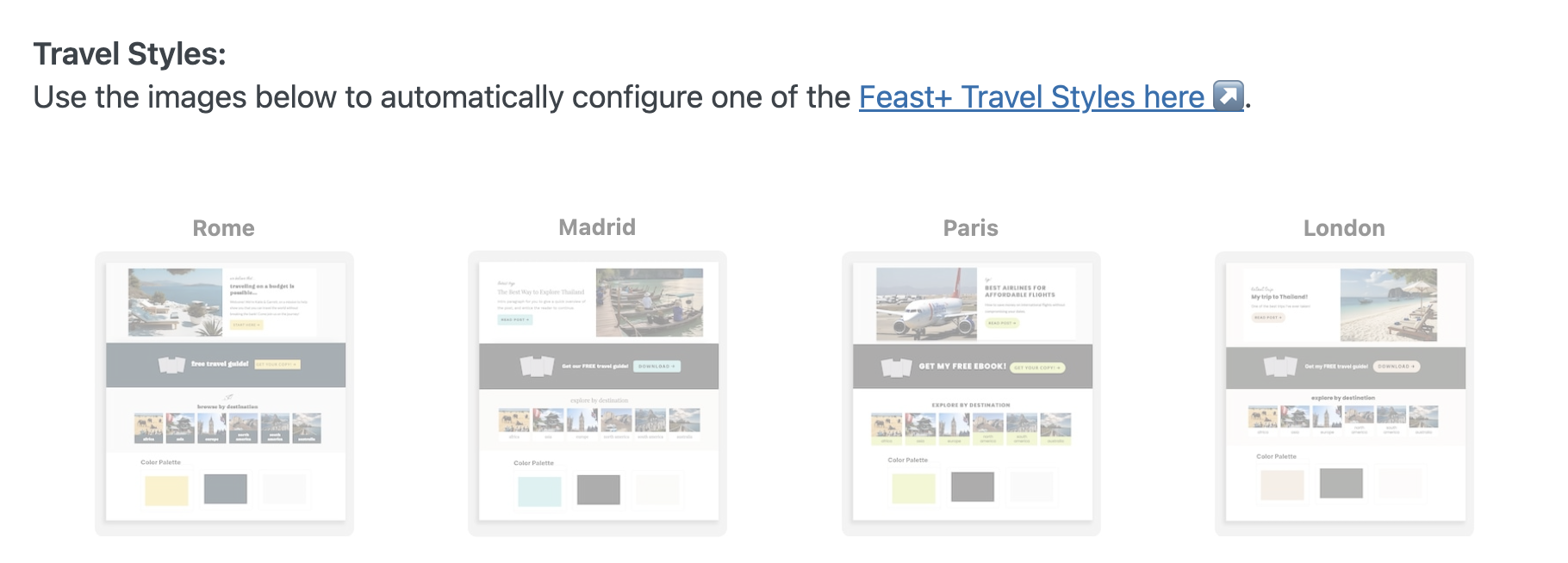
If using the "Paris" preset, use a white .PNG logo with a transparent background.
The Feast+ branding page controls:
Clear caches
Whenever you change settings, make sure to clear your caches and regenerate CSS:
- Purge this URL
- Clear used CSS of this URL
- Clear and preload cache
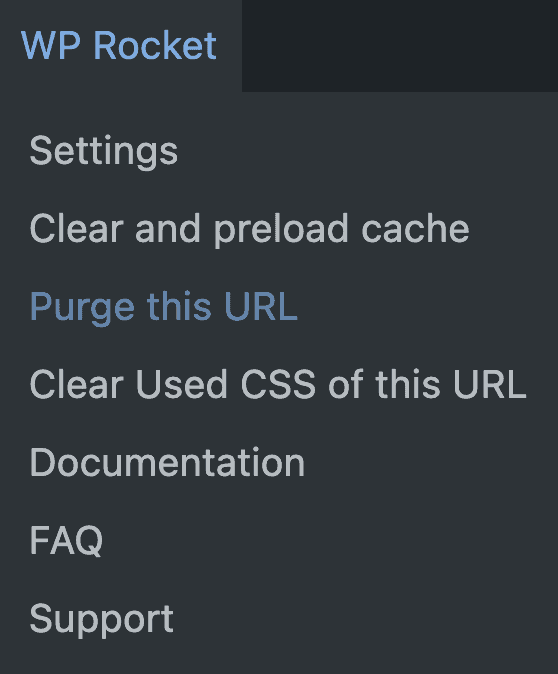
If you have Cloudflare cache through NerdPress or BigScoots, please contact them for instructions on clearing their caches.
If you're not seeing changes applied to desktop or mobile, then you have a caching issue.
Regenerate Thumbnails
If you notice that your thumbnails are not the correct size (i.e. oval vs. circle), you will need to regenerate thumbnails.
Slickstream
If using Slickstream, you'll want to contact them to update their search targeting to include the in-content search block.
Feast+ Overview
Before you dive in, watch this quick video to understand how Feast+ works. It's important to watch, as it explains the basics of setting up blocks and patterns in the most efficient way.
If you haven't been using Gutenberg editor or just need a refresh, we recommend reading through the WordPress block guide first.
Next Steps
Once you have the settings on this page configured, move onto Using Blocks & Patterns (Feast+).