
This is a slightly more advanced coverage of a few pagespeed topics, as an extension of the SEO for food bloggers post. If you've been running a food blog for a few years, you need to correct this.
This post spawned from a webinar put on by Casey Markee and Arsen Rabinovich, which you can find at: SEO Site Auditing for WordPress
What is HTTP status?
An HTTP status code is a response web servers use to talk to browsers. Simply: it's a computer-only code that your website gives your computer to know whether the page they asked for exists.
Wikipedia has an overview here.
This is something you'll want to review and improve every year or two, as part of a general maintenance program.
How to check your HTTP status
You can plug any URL into https://httpstatus.io/ to get a redirect chain. Ideally, you want this to be a single line - the link simply returns a 200 (success) without any 301 (redirect).
The most common redirects we see include:
- 301 redirect from HTTP to HTTPS, then
- 301 redirect from date-based URL to non-date-based URL
- 301 redirecting to the page version with a "/" on the end of the URL
- Finally, a 200 "Okay" status
The total time for this can be 1-2 seconds, which is a complete waste of your visitors time and can impact your pagespeed and therefore rankings.
Updating your in-content links will speed up your website and avoid any unnecessary pagespeed penalties.
Updating your in-content links
Anybody who's been blogging for a while will have lots of internal links pointing to pages that have been 301'd. This is also true if you've switched from HTTP to HTTPs and have forced redirection on.
Even if your host or a developer has automatically redirected all pages from HTTP to HTTPS at the server level (eg. via .htaccess), your in-content links may still be pointing to the old URLs, slowing down pagespeed.
This is not something that typically gets covered (we've literally never seen it covered), as it involves extra work that is easy to screw up.
How to update in-content links
We've done this for a few websites, and it's relatively simple. Here's the steps:
- BACK UP YOUR WEBSITE! Don't move forward before doing this
2. Add the "Better Search and Replace" plugin by going to Admin > Plugins > Add New > Search "better search replace" > Install
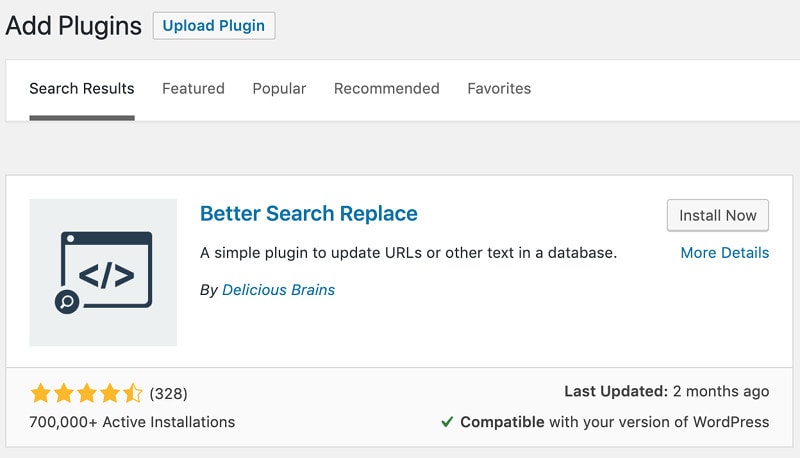
3. Activate it, then go to Tools > Better Search Replace

If not using www:
- Perform a search for href="http://yourdomain.com and replace for href="//yourdomain.com
- Select your posts table from the "Select tables" option
- You may use "Case-insensitive", but don't select "Replace GUIDs"
- Run as dry run first, and if all is okay, untick the "Run as dry run" box and run again
If using www:
- Perform a search for href="http://www.yourdomain.com and replace for href="//www.yourdomain.com
- Select your posts table from the "Select tables" option
- You may use "Case-insensitive", but don't select "Replace GUIDs"
- Run as dry run first, and if all is okay, untick the "Run as dry run" box and run again
IMPORTANT
I use "//" as the front part - this is perfectly web legal. It will link to HTTP if the page is HTTP, and HTTPS if the page is HTTPS. Some people may recommend specifying "https://", but if your SSL certificate ever fails, this can cause a problem. It's a safety measure to use no protocol. This is especially useful when linking images.
I use the href=" portion in search, because that will only match LINKS, rather than all instances of your domain (eg. simple text, image src).
There are no closing quotations or final slash - this is intentional, so that it partial matches all links, rather than just links to your homepage
Removing or adding www
Your website should be configured to either use www.domain.com, or just domain.com. I personally prefer domain.com without the www because it's cleaner looking, but there's no penalty for having the www in front.
I wouldn't recommend changing this however, as it does result in a redirect, and you may lose some authority due to "changing domains". More input is needed on this.
If not using www:
- Perform a search for href="//www.yourdomain.com and replace for href="//yourdomain.com
- This replaces all link instances of "www.yourdomain.com" with "yourdomain.com"
- Select your posts table from the "Select tables" option
- You may use "Case-insensitive", but don't select "Replace GUIDs"
- Run as dry run first, and if all is okay, untick the "Run as dry run" box and run again
If using www:
- Perform a search for href="//yourdomain.com and replace for href="//www.yourdomain.com
- This replaces all link instances of "yourdomain.com" with "www.yourdomain.com"
- Select your posts table from the "Select tables" option
- You may use "Case-insensitive", but don't select "Replace GUIDs"
- Run as dry run first, and if all is okay, untick the "Run as dry run" box and run again
Check your website URL settings
You should also make sure your site is configured properly for www or non-www in Settings > General

Note that in this screenshot, the host has locked the settings for safety reasons (protecting me from myself) and I'd need to reach out to my host to host to update this.
These two should always match - don't run a food blog as a sub-domain or in a sub-folder.
Check your canonical settings
This section is not complete.
Your canonical settings should match what's been set in your website URL settings, and the links that you've updated in the previous section. If you're using www, make sure the www appears in the canonical. If you're not using www, make sure the www is not appearing in the canonical.
eg. <link rel="canonical" href="https://foodiepro.com/threaded-comments/" />
This is controlled by (Yoast or WordPress?).
Removing date-based URLs from your links
People who've migrated from a date-based post structure to post-name in Admin > Settings > Permalinks almost always still have those date-based links in their content. This technically works thanks to the redirects, but creates a redirect chain that slows your pagespeed, and is a poor quality signal to search engines.
We do recommend using post-name as the permalinks setting, but do not do this yourself - you will break all your search engine traffic and internal links. Hire Grayson @ imarkinteractive.com to set this up properly for you.
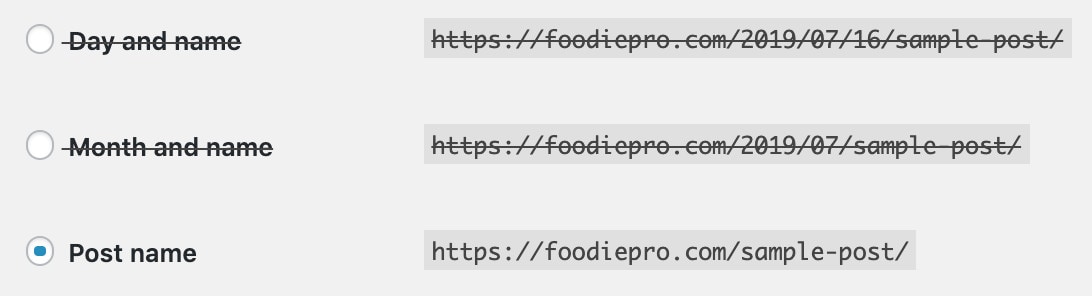
Date-based URLs are sometimes set up to use /year/month/date or just year/month, you'll need to determine which it is before proceeding.
If using /year/month:
- Perform a search for href="//www.yourdomain.com/2016/07/ and replace for href="//yourdomain.com/
- You will need to do this for each instance year+month you created.
- This replaces all link instances of "yourdomain.com/yyyy/mm/" with "yourdomain.com/"
- Select your posts table from the "Select tables" option
- You may use "Case-insensitive", but don't select "Replace GUIDs"
- Run as dry run first, and if all is okay, untick the "Run as dry run" box and run again
- Important: Make sure you have the href=" portion in there, plus the trailing slash - replacing JUST the dates will unlink all your images
If using /year/month/date, you'll want to hire someone to use regex directly on the database.