
One Date Logic refers to displaying a single date in the post info. After careful review, we recommend that clients who only wish to display the most recent date remove the published date entirely and only display the modified date. This is because:
- when a post is published, the modified date will match the published date
- when a post is modified date, the most recent date will be displayed
Feast clients may have this set up in one of three ways:
- Edit Post Info (Feast Plugin Settings)
- Author Bio (Feast Hooks)
- Kadence
Jump to:
Logic
Single date logic is being recommended by Raptive and various companies. Feast has no stance on this topic and simply offers way to accommodate it.
The idea behind only displaying the most recent date is that:
- Google may choose to display that date in search results if it's more clear
- users may be more tempted to click on that search result
This is purely a visual queue and does not impact the operation of a site.
Edit Post Info (Feast Plugin Settings)
The traditional setup for the post info is found in Admin > Feast Plugin under the Posts section, where you'll find the "Edit Post Info".
The default recommended text already includes built in conditionally displaying modified-date logic to only display the modified date if it's more than 7 days after the published date.
If you've created custom post info text that doesn't match the default template, this logic can not work.
Author Bio (Feast Hooks)
The Author Bio created via Admin > Posts > Feast Hooks does not allow for one-date logic.
You may choose to simply remove the published date, because the modified date will either match the published date once published, or reflect the most recent date if the post is edited at a later point.
We encourage all users on Genesis versions of the Feast themes to migrate to Kadence.
Kadence
The Kadence Customize > Posts/Pages Layout > Single Post Layout > Title Elements > Meta contains settings allow conditionally displaying the modified date (in addition to the published date), or simply displaying the modified date without the published date.
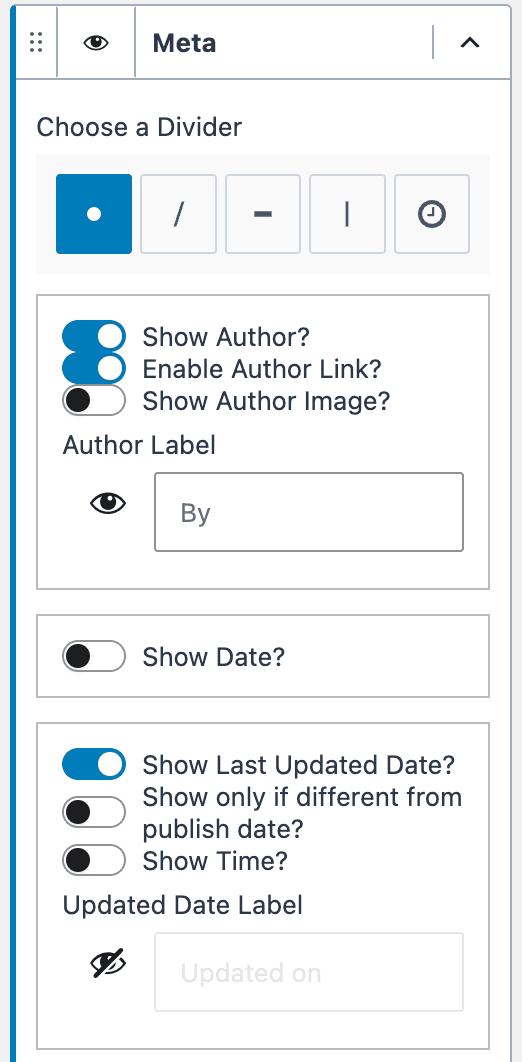
Find the full Single Post Layout Customizer Settings documentation for all available settings.
Note: setting dates
You can edit the published date at any time by simply editing the post, then clicking on the published date.
The modified date can not be directly edited and is always updated when a post is saved.
We do not recommend or support "Modified Date" plugins such as Limit Modified Date or others, as we've seen unintended side effects and dozens of problems with these over the years.
Note: prescheduled posts
WordPress allows publishing a date in the future, which if using single date logic, will display whatever the last modified date was. This could be a date prior to actually publishing.
To fix this, you want to go edit the post and re-save it to update the modified date.
Note: schema
Published and modified date schema will appear in the page source code regardless of whether you choose to display one or two dates - this is handled by SEO plugins such as Yoast. Modifying these is unnecessary.