
The Recipe Key is back, in a total rewrite and bundled with the Feast Plugin for free!
image
It's designed to be used as a visual indicator or diets the post qualifies for, helping your readers more easily find recipes they're interested in.
Jump to:
- First: Set up your diet-types
- Diet type examples
- Auto-assign
- Second: Setup the Recipe Key
- Post names
- Where do I use it?
- Should I use this or categories to organize diets?
- What if I have existing diet type categories?
- Internal linking
- What if I don't know what diets my recipe qualifies for?
- What's changed from the old Recipe Key Plugin?
- What if I have the old Recipe Key plugin?
- Pagespeed
- Javascript
- Accessibility
First: Set up your diet-types
You'll need to set up your diet types under Admin > Posts > Diet Types
For the name, simply type in the diet name, eg. "Vegan".
You can leave the slug field blank as it will auto-generate one, which is not used anywhere and is not important. Note that you can end up with a -2 or -3 on the end of you have any categories or tags with the same slug but this does not matter because the slug is not used anywhere. Basically: ignore the slug field.
Do not assign a Parent Diet Type.
The Description field is not used.
You can add any diet-type you feel is useful to your readers to the Diet Types.
Diet type examples
You can find examples in the Admin > Feast Plugin > Site Info page under the "Diet Specialty" section. This is not an exhaustive list.
Auto-assign
In order to save a little time getting the Recipe Key set up, we've added a time-saving tool to Admin > Feast Plugin > Tools
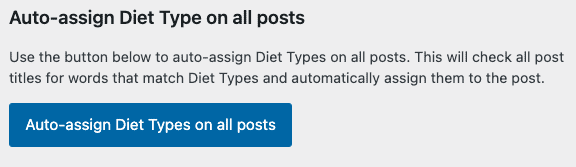
For each diet type you have set up, this will:
- perform a search for all posts with the name of the diet type in the title
- assign the diet type to that posts diet type
For example, if you have a "Vegan Enchilada" recipe, it will automatically get assigned to the "Vegan" diet type you have set up.
This is only to get you a quick start. You will need to manually assign most posts to most diet types.
Second: Setup the Recipe Key
Under Admin > Feast Plugin > Recipe Key you'll configure everything:
- how it gets displayed (Layout)
- what gets displayed (order, icon, category, display name)
- where it gets displayed (Location)
Layout
You can choose from displaying the icon, icon + display name, or just display name.
Display
The display is set by assigning the diet type you create to an icon, and choosing the text to be displayed and the order it gets displayed in.
- Order: set the order that the diet types show up in
- Icon: which icon will display
- Diet: the diet-type to assign to the icon
- Display name: the full or abbreviated text you want to display
Location
The Recipe Key can be automatically displayed:
- none
- above the content (recommended)
- below the content (not very useful)
If no diet-types are assigned to the post, it simply won't display.
Note that we don't support displaying the recipe key in the sidebar because this lengthens the sidebar and reduces sidebar ad revenue.
Post names
Note that your post name should be based on keyword research for keywords that:
- you can rank for, and
- have search volume
We see many sites dumping diets into the post name and this is generally not the best practice. It creates post titles that are too long and can hinder you from ranking for a single term. eg. you probably won't rank a "Vegan Gluten Free Grain Free Dairy Free Crockpot Enchilada" post for the keyword "vegan enchilada" because there's a user intent mismatch.
Where do I use it?
The Recipe Key is designed to be displayed:
- below the title on posts, and
- in the FSRI block (eg. homepage)
Should I use this or categories to organize diets?
The majority of sites will not rank a category page for a diet type, and as such, shouldn't be creating categories around a specific category.
However, it's still very helpful to provide readers with information on whether or not a recipe qualifies for a given diet.
If your site is specifically oriented around a diet type of niche, you may benefit from creating categories around those diets. In that case, the diet-type would still be useful by helping you visually indicate to readers which other diets it qualifies for.
What if I have existing diet type categories?
The answer to this depends on whether they meet high category quality criteria:
- can I rank a category page for this diet type?
- is there enough quantity of recipes to be useful to readers (eg. 8+)
- do I have unique content (descriptions)?
- does this category rank or get any traffic?
If you don't meet some or all these criteria, you may be better off using the diet-types taxonomy which doesn't create indexable pages.
The only way for you to get a firm answer on this is to either thoroughly educate yourself, or hire an expert like TopHatRank to perform a site-specific analysis.
Internal linking
As noted above, this does not provide any internal linking and is used exclusively to improve the user experience by providing additional information about which diets the current recipe qualifies for.
What if I don't know what diets my recipe qualifies for?
Don't try to fake this if you're not very familiar with the diets.
Incorrectly labeling a recipe can have extremely serious health consequences for people who need to follow certain diets.
Mislabeling a recipe can put you in serious legal liability, as well as put you in the crosshairs of Google's YMYL crosshairs.
Alternatively, you may want to look into hiring a certified dietician to review recipes one by one.
What's changed from the old Recipe Key Plugin?
The version in the Feast Plugin is completely rewritten.
The original recipe key served to link to diet-based categories but this isn't appropriate for 99% of food blogs. You should only create quality categories to avoid thin content penalties and wasted crawl budgets.
The Feast Plugin Recipe Key is a visual only indicator of what diets the recipe complies with.
What if I have the old Recipe Key plugin?
This should work alongside it, but we'd recommend removing the original version.
The original version was created under a different set of requirements on the web (it was acceptable to have thin content pages), which are no longer best practices.
Pagespeed
While this plugin is extremely light in itself, this will add DOM nodes to your page which can negatively impact pagespeed.
Using it below the post title is very safe.
Having it display the diet types on all FSRI blocks everywhere on your site will add many DOM nodes which may slow some pages that are already pushing the DOM node benchmark.
Javascript
It uses no javascript.
Accessibility
There is an aria-description that provides screen readers with a concise list of diet types that are displayed visually on screen.
We opted for an accessibility-first single description rather than having keyboard navigation or.
The description will read:
- Diets: [comma separated list of diet names]
Note that it outputs the diet name on the diet-types screen, and not the name entered into the Recipe Key settings page.