
This tutorial features the Feast Plugin, which enhances and extends your theme to improve SEO, pagespeed, accessibility and user experience.
The Modern Thumbnails are better sized for the theme content width, and allow you to change themes without worrying about images being incorrectly sized.
IMPORTANT: thumbnails are generated from the featured image to be used on your blog, but the featured image dimensions doesn't dictate the thumbnails that you use on your own site. See: how thumbnails work
These thumbnails more accurately reflect the content width on both mobile and desktop, which reduces the amount of bandwidth used by your server, saving you money.
This will make running your blog easier, combined with our new recommendation to upload at:
All featured images should be uploaded at 1200x1200 or 1200x1800 px as JPGs.
Background: See rethinking the featured images and rethinking thumbnails.
Jump to:
- Modern thumbnails
- Why "modern" thumbnails?
- Note: 1200x1800 featured images
- 1. Add the basic modern thumbnails
- 2. Add your preferred thumbnail orientation
- 3. Regenerate thumbnails
- 4. Implement the Modern Categories
- Set the default "Featured Image" size
- Featured image size
- Old posts
- Best practice: remove theme thumbnails
- Breaking change
- In-content post images
- Block editor bug
- Image re-optimization
- WebP
- Example: Horizontal thumbnails
Modern thumbnails
Thumbnails are what are used to display images on your site, and do not have to match the featured image ratio. You can upload 1200x1200px featured images and display 720x960px (3:4) images just fine.
For more information, see how thumbnails work.
Now that the themes have been consolidated to a 720px desktop and 360px mobile width, our thumbnails should reflect these sizes. Balancing disk space and image quality, we can safely move to 3 primary thumbnail widths:
- 720px (full-width desktop content)
- 360px (half-width desktop content, full-width mobile content)
- 180px (quarter-width desktop content, half-width mobile content)
The reason we want 180px is that we display all posts on the homepage and category pages at half-width mobile by default.
There are also 3 possible thumbnail orientations: square, landscape, portrait. We've matched the image dimensions Google's Featured Image specifications (+ recipe card) with a 3:4 ratio.
This means the possible sizes we're dealing with are:
- 1:1 (square) - 720x720, 360x360, 180x180
- 2:3 (portrait) - 720x1080x 360x540, 180x270
- This is the default ratio on most cameras
- 4:3 (landscape) - 720x540, 360x270, 180x135
3:4 (portrait) - 720x960, 360x480, 180x240- We recommend using the 2:3 format instead of 3:4
Note: this assumes that you're using the recommended content+sidebar layout for desktop. Using content areas without a sidebar on desktop will require registering custom image sizes.
Why "modern" thumbnails?
Theme thumbnail sizes disappear when changing themes, which leads to irregular image sizes and issues when changing themes (and sometimes updates).
- The theme's thumbnail sizes are no longer optimal for the layouts being used
- Removes image size issues when changing themes
- Setting these thumbnails using the plugin allows us to update the sizes down the road if necessary (for example, supporting the sizes attribute)
Google Discover currently requires 1200px width (minimum) images, and the themes were not designed with this requirement in mind. The modern thumbnails are.
We believe that article and recipe schema will eventually require this size as well.
Note: 1200x1800 featured images
We find that people often upload 1200x1800px images out of convenience, because that's what their camera shoots in.
Google's article schema image specifications are explicit that they require 1x1, 4x3 or 16x9 ratios for compliance.
So while you're able to upload 1200x1800px featured images, they do not comply with Google's specifications, which may or may not result in ranking issues.
Because of that, we recommend 1200x1200, but it's up to you to follow that or ignore it.
1. Add the basic modern thumbnails
Go into the Feast Plugin and add the two basic modern thumbnail sizes: square thumbnails, and in-post thumbnail sizes.
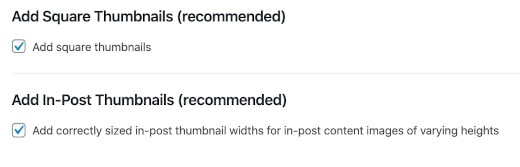
There's also the in-post thumbnails, which we recommend enabling.
The in-content thumbnail sizes do not crop the image, instead they simply resize the image to match the specified width (720, 360) regardless of the height - the images remain proportional.
2. Add your preferred thumbnail orientation
The themes were built to use portrait (vertical) images, and we expect that most people will continue with this option.
However, we've also added landscape (horizontal) images as an option for anyone that wants to try a different layout.

If you have lots of disk space on your server, you can enable both portrait and landscape images.
3. Regenerate thumbnails
Go into the Regenerate Thumbnails Plugin at Admin -> Tools -> Regenerate Thumbnails and regenerate thumbnails:
- DO select skip regenerating existing correctly sized thumbnails
- DO NOT select delete thumbnails for old unregistered sizes
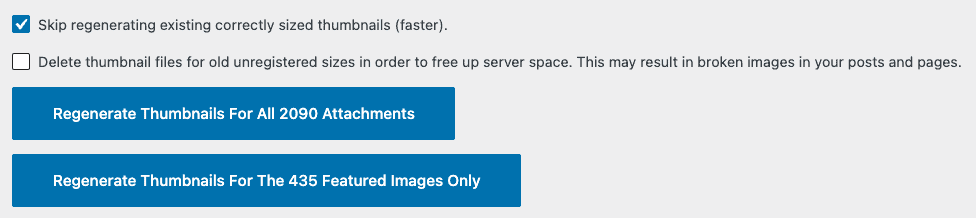
Note: Shortpixel throws a warning about the Regenerate Thumbnails plugin, but we've never seen any conflicts/issues. It lacks some configuration options. You can ignore this warning.
Note #2: deleting thumbnail files for old unregistered sizes may delete images that were inserted to your posts using your previous themes thumbnail sizes, which will cause the images to break. This is a risk not worth taking.
Once completed, go to:
- Feast Plugin > Setup > Configure Shortpixel Settings
- Settings > Shortpixel > Save and Go to Bulk Process
4. Implement the Modern Categories
Implement the Modern Categories to auto-configure your category pages with current best practices.
Set the default "Featured Image" size
We typically recommend setting the default featured image size in the Feast Plugin to a 360px width. For portrait (vertical) thumbnails, this would be 360x480.

The feast-portrait-3x4-360x480 is the most commonly used size, and is the one we recommend using.
Featured image size
All featured images should be uploaded at 1200x1200 pixels, as a square image. We'd recommend using this same image for your recipe card, as well.
Featured images are not designed to be displayed in the post. You can use the same image in the post if you'd like, even at different dimensions.
Please review this in-depth tutorial for image optimization.
Old posts
It's very common for older posts to have a featured image size that's less than 1200px. This doesn't comply with Google's requirements (see the image optimization tutorial) and can result in on-site display issues.
There's no alternative aside from manually updating the Featured Image for each post as you go through the regular process of updating posts.
We recommend following the Recipe Update Checklist and properly updating an entire post rather than just changing the featured image, where possible.
Best practice: remove theme thumbnails
Each theme has different sizes, due to different periods in which they were designed and developed. They're not all optimal, and should all be removed after the modern thumbnails in the plugin are added. See note about "Breaking changes" below.
In order to do this, go to the Feast Plugin and check the box to remove theme thumbnails:

Note: this will only work on themes from Feast Design Co. Other themes will require you to edit the functions.php file, or create a custom function in the Code Snippets plugin to remove the theme's registered thumbnails.
Breaking change
If you've inserted your post images as thumbnails, they'll have the thumbnail size appended to the filename, and these images will break if you select "Delete thumbnail files for old unregistered sizes [...]" after removing theme thumbnails.
Another option is to simply leave the old thumbnail sizes that were registered in the themes. This doesn't cause any major problems aside from filling up your disk space with images that you won't be using any longer.
In-content post images
See the modern post image sizes page.
Block editor bug
On posts not originally written in the block editor, it will show the image size as "thumbnail" (150x150px) on the right-hand sidebar even when it isn't a thumbnail.
This is a purely visual error and not actually correct.
You can just change this to "Full Size", or ignore it. There's no need to go into each post and update old posts just for this.
If you are editing posts or inserting new images, make sure to select "Full Size".
Q: can we change WordPress to automatically use "Full Size" instead of "Large"?
At this time, no.
We've revived a request to make this editable: https://github.com/chroot/home/ae8f8b0c/docs.feastdesignco.com/html/gutenberg/issues/8663
This is especially frustrating, because WordPress does have a setting built in to it for you to specify the defaults:
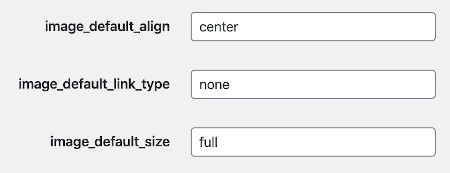
Whoever developed the "image" block in the block editor simply decided to break this functionality.
Image re-optimization
If you use the Shortpixel plugin for image optimization, it will automatically re-optimize the new thumbnails you generate. This means it will consume credits for each new thumbnail size you enable. The more images you have, the more thumbnails you'll need to pay to resize.
Consider this being a victim of your own success.

In Shortpixel, Lossy provides the highest image compression, and should be used if you don't see large image quality issues.
Glossy would be the next-best, with Lossless being almost useless.

Make sure to keep a backup of your original images.
We also recommend removing EXIF (this is unnecessary data about the camera), and resize images to maximum 1200px wide, 2000px high with the cover setting. Thanks to Andrew @ Nerdpress for this recommendation.
We do not recommend or support the Smush plugin, or Imagify.
WebP
We do not recommend or support WebP. Do not enable anything that enables WebP.
Example: Horizontal thumbnails
Here's an example of what horizontal thumbnails look like:

Disclaimer
We've implemented this on a number of sites without any issues, but can't be sure we're compliant with every possible configuration. We highly recommend doing this on a staging site first, or having daily backups through your host that you can easily restore if something goes wrong.
You can deactivate the Shortpixel plugin while doing this if you don't want to use optimization credits.