
Skip to content
Feast Design Co.
  • Get the Feast Plugin
  • DocumentationExpand
    • Feast Plugin
    • Feast+
  • Open a Support Ticket
New to Feast? Start Here
Login/Account
Feast Design Co.

Getting Started

3
  • Migrating to Feast
  • Staging Site
  • Sign Up For The Newsletter

Genesis Setup

15
  • Edit Post Info
  • Update Author Bio
  • Modern Navigation
  • Clear Cache ‼️
  • Layout
  • Modern Index
  • Feast Plugin Setup
  • Modern Homepage Setup
  • Modern Menu for Desktop
  • Modern Mobile Menu
  • Sidebar
  • Modern 404
  • Modern Recipe Index
  • Modern Categories
  • Modern Footer

Plugin Settings

18
  • Edit Body Font Size
  • Subscribe button
  • Social Icons
  • Recipe Key
  • Post Template
  • Table of Contents
  • Post IDs
  • Google Trusted Source
  • Edit Leave a Reply
  • Disable Trackbacks
  • Modern Previous + Next
  • Posts per page
  • Breadcrumbs
  • Productivity
  • Smooth scrolling
  • Image unlink
  • Replace recipe card Jump To buttons
  • BETA

Block Editor 101

4
  • Block Editor
  • Block themes
  • Patterns
  • Why we don't support block-level styling

Blocks & Patterns

15
  • Post Template
  • Numbered Lists
  • Table of Contents
  • Full Width Banner
  • Featured Recipe Pattern
  • Why we don't support block-level styling
  • Process Shots
  • Inline Heading Group Block
  • Step Instructions
  • Advanced "Jump To" Links
  • Reader Review
  • Feast Patterns
  • Displaying Post Blocks (FSRI)
  • Displaying Category Blocks (FSCI)
  • Scheduled Categories

Page Templates

3
  • Custom 404
  • How to use Categories
  • Shop page

Customize

8
  • Customizer
  • Customizations
  • Customization Referrals
  • Why we don't support block-level styling
  • Per Page CSS
  • Why you shouldn't make customizations
  • Custom CSS
  • Customization Support

Images

10
  • Post Images
  • Default Image Size
  • Modern post image sizes
  • How thumbnails work
  • Modern Thumbnails (Featured Images)
  • Troubleshooting Featured Images
  • Displaying Post Blocks (FSRI)
  • Process Shots
  • Image Alt Tags
  • Why do my images look different in edit post and live?

Feast+

32
  • What is Feast+?
  • Feast+ Setup
  • Design Kits
  • Feast+ Fonts
  • Feast+ FAQ
  • Feast+ Showcase
  • Feast+ Patterns
    • Top Banner
    • Custom list styling
    • Numbered Lists
    • Full Width Banner
    • Feast+ Footer
    • Feast+ Call to Action
    • Icon Tip Boxes
    • As Seen In
    • Reader Review
  • Feast+ Pre-Built Pages
    • Feast+ Homepage
    • Feast+ Index
    • Feast+ Category Pages
    • Social Landing Page (Link In Bio)
  • Branding & Design
    • Feast Fonts
    • Feast+ Branding & Design
  • Feast+ Features
    • Full-Width Post Header
    • Custom List Styling
    • Colored Numbered Lists
    • Top 10 List Styling
    • Step Instructions
    • Heading Styling
    • Top of Site CTA Banner
    • Custom Background Pattern
  • Design Kits
    • Feast+ Design Kits (Members)
    • Feast+ Design Kit Library
    • Feast+ Design Kit Instructions

Recipes

7
  • Reviews
  • Recipe Key
  • Ingredients
  • Displaying Category Blocks (FSCI)
  • Displaying Post Blocks (FSRI)
  • Featured Recipe Pattern
  • All Recipes

Social Sharing

2
  • Social Icons
  • Tiktok

Logo & Fonts

5
  • Retina Quality Logo
  • Create your logo
  • Edit Body Font Size
  • Fonts
  • Logo

Categories

3
  • Why Isn't the Category Description Appearing?
  • Displaying Category Blocks (FSCI)
  • How to use Categories

Speed & SEO

18
  • Image Alt Tags
  • Speculative Loading
  • Google Trusted Source
  • 301 Redirects, Links, Canonical and Pagespeed
  • Image file size vs. pagespeed
  • Duplicate Content
  • Lazyloading comments
  • CLS
  • Blocking Time
  • SEO
  • Skip lazy loading first post image
  • Horizontal scrolling
  • Smooth scrolling
  • Pagination
  • Pingbacks
  • INP (Interaction to Next Paint)
  • CDNs
  • Site Speed

Blogging Resources

15
  • Food Blog Sitelinks
  • Photography
  • Understanding "penalties"
  • Food Blog Page Structure
  • Food Blog Site Structure
  • Comments
  • Internal links
  • Analytics
  • Pagespeed
  • SEO for Food Bloggers
  • Modern guidelines for page headings
  • How to Write a Recipe Post
  • Recipe Page Guidelines for Food Bloggers
  • Image Optimization
  • Recipe Update Checklist

Legal Resources

5
  • Legal Resources
  • DMCA and Copyright Infringement
  • Copyrights
  • Accessibility
  • Private Label Rights (PLR)

Troubleshooting

10
  • Why do my images look different in edit post and live?
  • Why Isn't the Category Description Appearing?
  • Troubleshoot Plugin Conflicts
  • How to update your theme
  • Feast Plugin FAQ
  • W3 HTML Validation
  • Sorry, this file type is not permitted for security reasons.
  • Troubleshooting Featured Images
  • Either "name" or "item. name" should be specified (in "itemListElement")
  • Clear Cache ‼️

Compatibility

2
  • Compatibility
  • WP 6.7

Integrations

8
  • Ecommerce
  • Ingredients
  • Google Trusted Source
  • Contact Forms
  • Translation
  • WP Recipe Maker
    • Reviews
    • QR Code
    • Ingredients

Developer Resources

6
  • Multisite
  • Feast Plugin Deprecated
  • W3 HTML Validation
  • Feast Plugin: Disable Theme Google Fonts
  • Rethinking the Thumbnails
  • Design
View Categories
  • Home
  • Documentation
  • Genesis (Legacy)
  • Genesis Setup
  • Modern Menu for Desktop

Modern Menu for Desktop

The Modern Menu is an enhancement to the classic theme menus, that incorporates inline display on the desktop version (screen/browsers over 1200px). You must complete the Modern Menu setup for this to function correctly.

Note: on most food blogs, 80% of all pageviews happen on mobile, and so that menu needs to be designed for mobile first and desktop secondly.

Jump to:
  • Setup the Mobile Menu
  • Inline Desktop Menu
  • Hamburger Modern Menu
  • Classic theme menu
  • User experience
  • Mobile subscribe button
  • Purpose
  • Editing
  • Submenu
  • Troubleshooting
  • Sticky
  • Inline Modern Mobile Menu

The Modern Menu replaces the theme header and menu with a mobile and accessibility-optimized layout. As of 2021, with pagespeed, SEO and accessibility being major concerns, the Modern Menu is designed to:

  • improves user experience by increasing above-the-fold content
  • improves user experience with a subscribe button
  • improves core web vitals by removing CLS issues
  • improves pagespeed by removing render-blocking javascript
  • improves SEO by supporting good site structure by making use of index pages for navigation

Setup the Mobile Menu

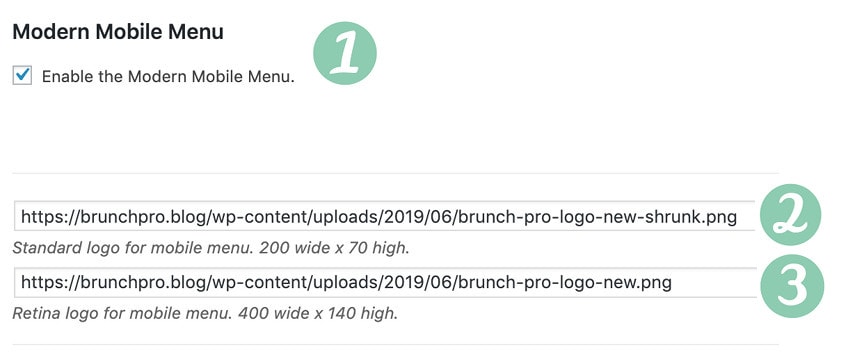
To set up the Modern Mobile Menu:

  1. Enable the menu with the checkbox
  2. Upload and set mobile-only logo at 200x70 px
  3. Upload and set a mobile-only retina logo at 400x140 px
    • note: both of these logos are required
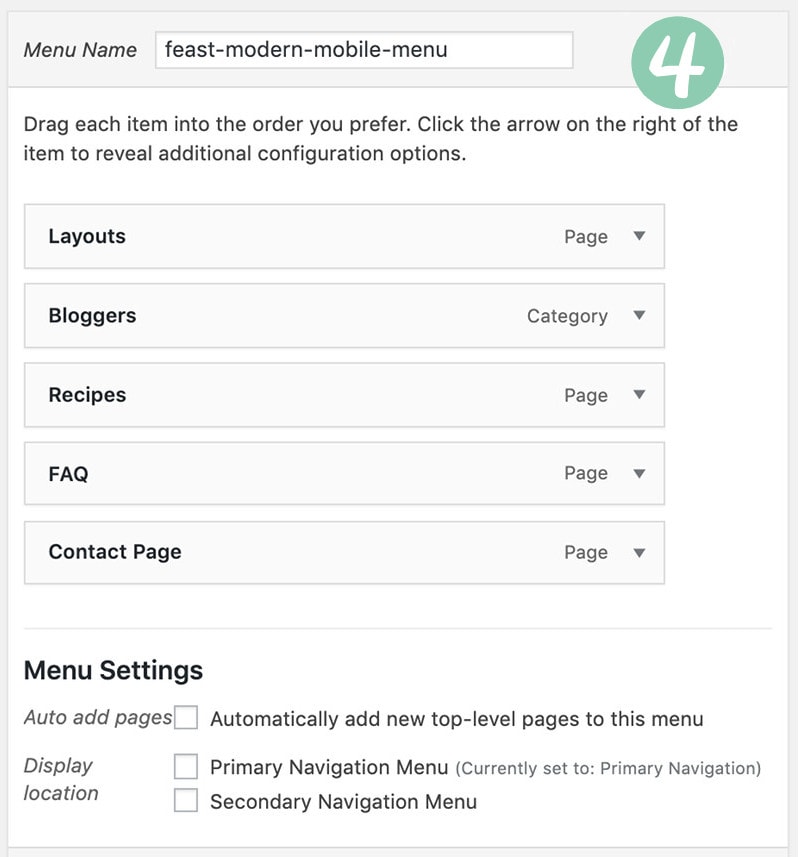
  4. Create a new menu named feast-modern-mobile-menu (or simply use the "Primary" navigation menu)
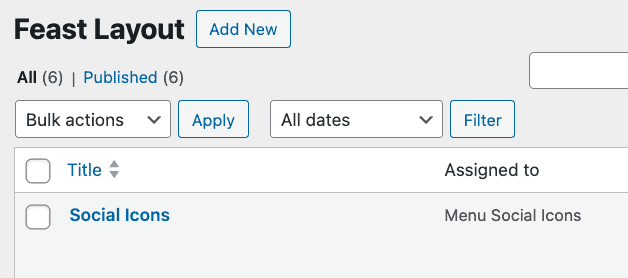
  5. Add the Feast Social Icons block to the new Feast Layouts
#4 - by default, the menu will use the Primary Navigation menu, or you can create a new menu named feast-modern-mobile-menu in Admin > Appearances > Menus:
#5 - add the Feast Social Icons block to the new Menu Social Icons Feast Layout widget area in Admin > Feast Plugin > Feast Layouts:
Due to space constraints, only the first 3 icons will be shown on desktop.

Inline Desktop Menu

We recommend using the Inline Modern Menu.
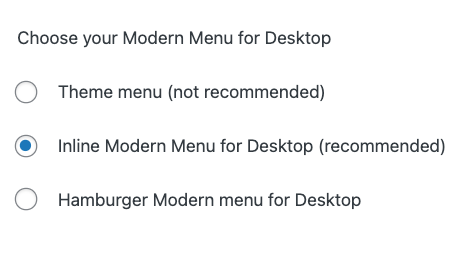
The Inline Modern Menu improves on the original theme menu by:

  • showcasing your 5 most important links for site structure and a call-to-action
  • a "sticky" menu that lets your readers go back home, and access search, and all times
  • a minimal logo, ensuring that the on page content that your readers are on your site for is give the most screen real estate
  • social icons for readers to follow you on other platforms
    • Due to space constraints, this is limited to the first 3 items only

Note: this uses the feast-modern-mobile-menu you created when setting up the Modern Mobile Menu.

Hamburger Modern Menu

The hamburger menu is a design scheme for mobile devices, because displaying an entire menu on a mobile screen isn't possible.

However, we had enough requests to allow this as the desktop menu, so we've made it an option.

Classic theme menu

While we don't support using the theme menu anymore, the Modern Menu can be disabled to fall back to the traditional theme menu.

Note: the theme menu style varies depending on which theme you have set up.

User experience

The first 5 links in the Modern Mobile Menu you created are what gets automatically embedded, and these should be the most important links you want to promote.

This requires conscious effort and is actually very important for the user experience - you want to guide your readers through your site with a good site structure, not simply overwhelm them with options.

Mobile subscribe button

There is limited space on the mobile version of the Modern Menu, so only a single image/button can be placed next to the logo.

By default, this is a Subscribe image with a link to a /subscribe/ URL on your site, intended for newsletter signups. You can create a new page with the /subscribe/ URL to
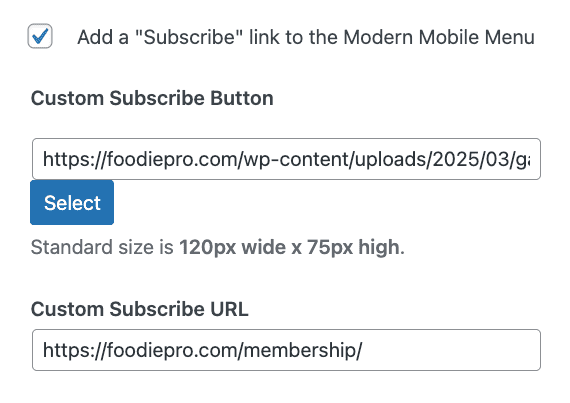
Optionally, you can specify your own subscribe image and a custom link if you prefer to promote something else on mobile. This can be used to promote a:

  • membership option
  • ebook
  • course

Depending on your primary goals.

On desktop, the subscribe button is removed on the inline menu, in favor of having additional menu items. If you'd like, you can add a Subscribe link to the desktop menu using a custom link:
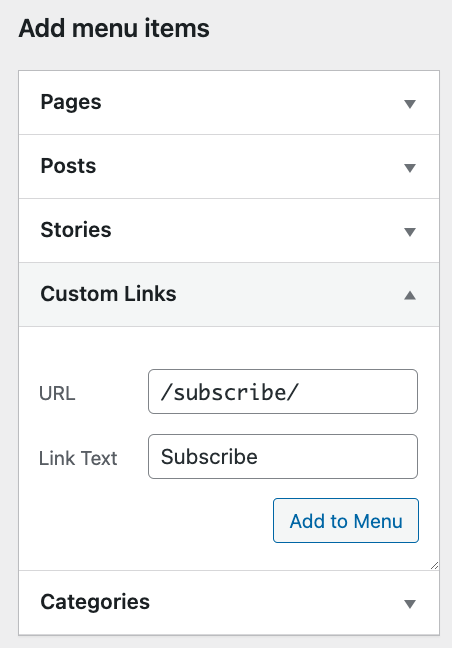
This also provides translation support.

Purpose

Menus serve a specific purpose online.

The menu is the broadest level of navigation on your site, focused on linking to "index" pages that allow users to navigate deeper into the site, or focus on key calls-to-action such as subscribing to your newsletter, or contacting you.

  • Link
  • Navigation
  • Footer
  • Primary navigation
  • ✔
  • x
  • Logo (homepage link)
  • ✔
  • x
  • About
  • ✔
  • x
  • Recipes (index)
  • ✔
  • x
  • Search
  • ✔
  • x
  • Contact
  • x
  • ✔
  • Email address*
  • x
  • ✔
  • Privacy Policy
  • x
  • ✔
  • Terms and Conditions
  • x
  • ✔
  • Accessibility Statement
  • x
  • ✔
  • Newsletter (Subscribe)
  • x
  • ✔
  • Work with me (Services)
  • x
  • ✔
  • FAQ
  • x
  • ✔
  • "As seen in"
  • x
  • ✔
  • Amazon disclaimer
  • x
  • ✔
  • Copyright statement
  • x
  • ✔
  • Sitemap
  • x
  • x
  • For SEO, accessibility and user experience reasons, we don't recommend having 2 navigation menus, or stuffing the header with too much content unrelated to the main content (the recipes). The purpose of the menu is to provide top-level navigation to key pages.

    Editing

    The Modern Menu has links to edit logo, edit menu and edit social icons on the left side, to make it easier to access the sections:
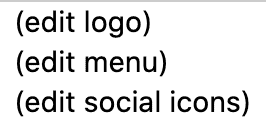
    This is not in the customizer.

    This only shows to the admin when logged in, not to site visitors. This can not be removed.

    Submenu

    Based on recommendations from consultants on accessibility, SEO and pagespeed, we strongly recommend a simple single-level menu with no dropdowns or submenus. Instead, provide users with a good site structure, using multiple Modern Recipe Indexes if necessary.

    A simple one level navigation menu without submenus can benefit accessibility best practices, user experience and SEO by presenting a flexible page structure conveying  information and relationships through deep links, text and content.

    Kim Krause Berg, Accessibility Expert

    As of the Feast Plugin 13.0.0 we now support submenus/drop-downs on both desktop and mobile. Note that stuffing too much into the menu is bad for accessibility and increases DOM nodes which can negatively impact pagespeed.

    Troubleshooting

    Why is the wrong menu showing?

    You may not have created the feast-modern-mobile-menu as with the correct name, or you may have older unused menus that need to be deleted.

    Why is the formatting off?

    This is a caching issue, because it hasn't been regenerated to include the styling necessary. Please clear all hosting, WP Rocket and CDN caches.

    Why do the words stack on top of each other?

    If your menu items title is too long, it will wrap to the next line. To resolve this, shorten the menu title. For example, "Recipe Index" should just be "Recipes". "Work with me" should be "Collaborate".

    Can I do a drop down menu?

    Yes, submenus/drop down menus can be used, though we recommend against it due to pagespeed and accessibility concerns. Instead, provide users with a good site structure, using multiple Modern Recipe Indexes if necessary.

    Why aren't my social icons showing?

    You'll need to follow the instructions for setting up the Modern Mobile Menu Social Icons.

    Why are my social icons on two lines?

    If you've set your social icons larger than 50px, there's not enough space inline so they stack. Reduce the icons to 50px in the Modern Mobile Menu Social Icons widget area.

    Why do I have two menus?

    Either the theme you're using (non-Feast) loads their menu in a different way, or you have a "secondary navigation" menu set. Simply unset the "Secondary Navigation" option in the menus screen.

    Sticky

    Foodie Pro 5 has customizer settings to disable sticky, edit height and change colors. See the Modern Menu section of the customizer (requires Foodie Pro 5 with the Feast Plugin 13.0.0+)

    We strongly advise against disabling sticky for ads, or minimizing the menu height for ads. This is objectively a worse user experience which is a MAJOR factor in SEO, and just an overall experience for your readers. We believe recommendations to minimize the menu or remove the sticky are short sighted and user hostile.

    Inline Modern Mobile Menu

    Mobile devices don't have the screen width necessary to accommodate an inline menu, so this is not available for mobile.

    Was this helpful?

    • Happy
    • Sad
    Modern Homepage SetupModern Mobile Menu

    Products

    • Feast Plugin
    • Feast+
    • Feast+ White Glove
    • Feast+ Style Refresh
    • Done-for-you Services
    • Demo trial
    • Themes
    • Theme Install Service
    • Classic Themes
    • Lattice Plugin
    • Travel
    • Logo creation

    Help

    • Kadence tutorials
    • Kadence Install
    • Documentation & Tutorials
    • Feast+ Members
    • Discounts & Coupons
    • Trellis 2.0
    • Trellis
    • Trellis Migration
    • Compatibility
    • Support
    • Legal resources
    • Genesis vs. Kadence
    • Changelog
    • How to start a blog course

    Company

    • Privacy Policy
    • Refund Policy
    • Terms & Conditions
    • Why Feast
    • Principles & Best Practices
    • Affiliates
    • Contact
    • Opinion Disclaimer
    • AI Policy

    Copyright ©  2026 · Feast Design Co. Results not typical or guaranteed. Our themes and plugins are just a small part of the overall effort involved in running a food blog. Nothing on this website shall constitute legal or financial advice, always consult a local lawyer and accountant. Accessing this website and all transactions herein are under the laws and jurisdiction of Toronto, Ontario, Canada. All pricing is USD.

    • Get the Feast Plugin
    • Documentation
      • Feast Plugin
      • Feast+
    • Open a Support Ticket
    Facebook X Instagram
    Search