
This tutorial features the Feast Plugin, which enhances and extends your theme to improve SEO, pagespeed, accessibility and user experience.
The purpose of the Feast Plugin's Advanced Jump To Links is to:
- provide your readers with a better on-page navigation experience
- generate additional links in the search results for your heading tags
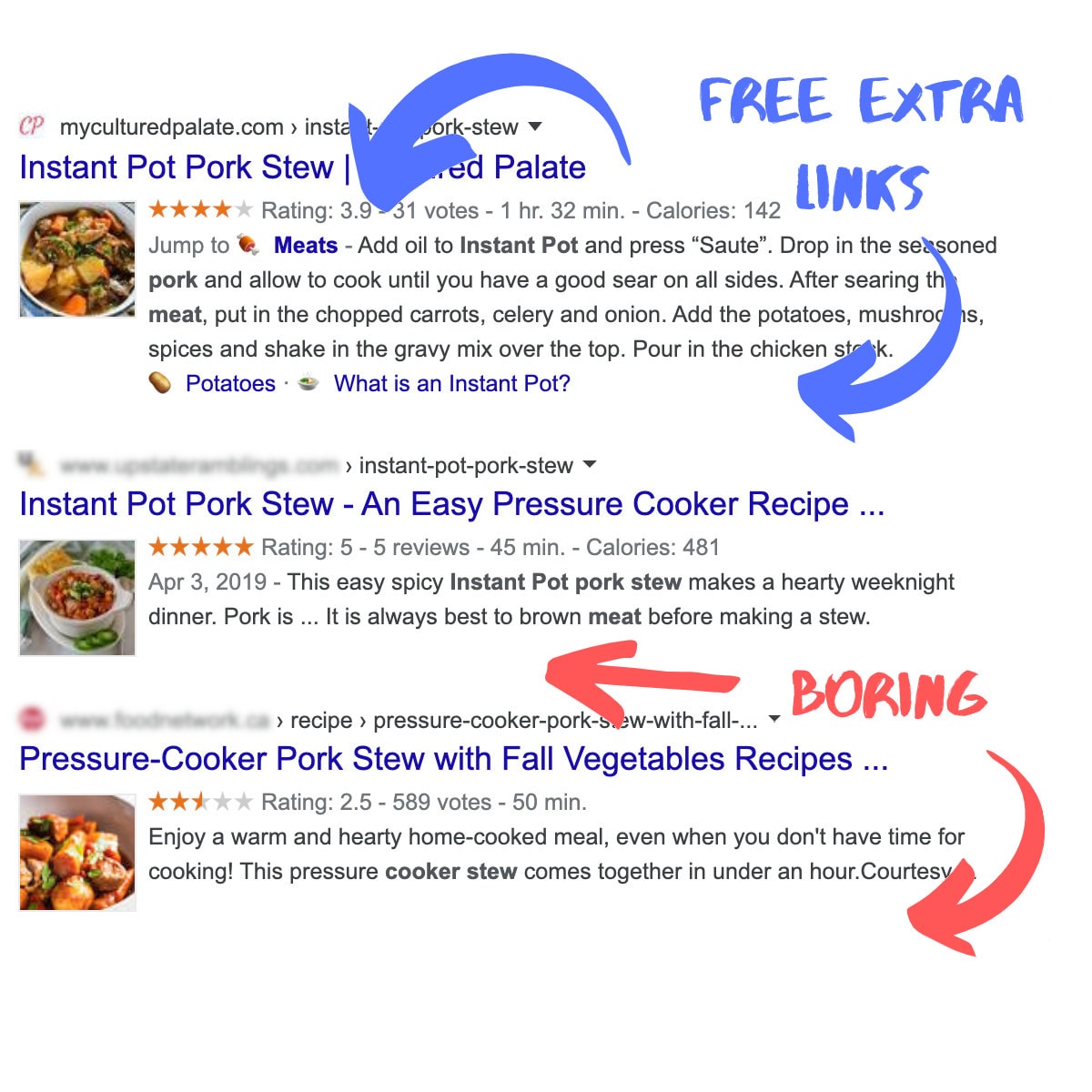
The core of it breaks down into two features that when combined, can qualify you for additional links in search engines, and hugely improve your on-site user experience:
- Page anchors, also known as anchor tags, jump links, or "Page Jumps" in WordPress
- An expanded "jump to" menu that links to your h2 tags
We should say up front that there's no guarantee that all (or any) of your recipes will get these links. Search engines reward high quality content with additional rich search results, and if you're not generating these links then there may be a quality issue with your page content or site structure.
Additionally, these jump to links are typically only found in the top 5 positions in the search results. If you're in position 6 and lower, it's unlikely to show.
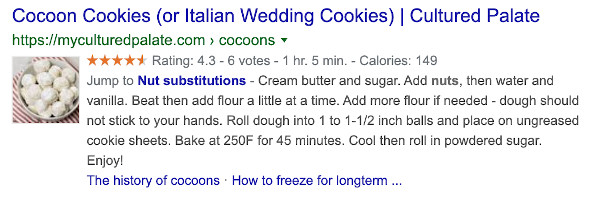
These particular rich snippets are driven exclusively by on page formatting and not structured data, and can be shown as a "Jump to (heading)" or as additional links below your regular page description.
For clarification, your header is the top section of your website, a heading is an h2 element in your content.
This feature deals with headings and is not related to headers.
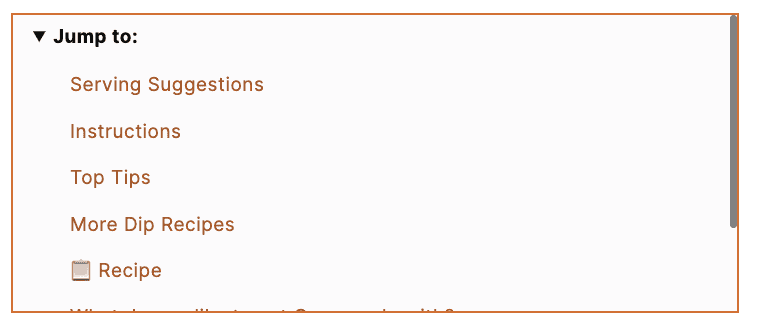
And in case you were wondering how they look on site, here is the feast_advanced_jump_to block live:
Jump to:
- How to use it
- Why is it blurred in the block editor?
- Styling
- Guidelines
- Why use it?
- Automated page jumps
- Automatically insert into posts
- Why only h2s?
- Expanded "jump to" menu
- Search engine benefit
- Examples
- Rewrite your heading tags
- How does a link to an anchor (page jump) affect SEO?
- Using the block editor
- Do emojis work?
- Replace the recipe card heading
- Roundup
- Link to the comments
- Default closed
- Max height box + scroll
- Non-english characters
- Google Search Console
- Future development
- Smooth scroll
- Disable
How to use it
Note: we no longer recommend making this a reusable block due to WordPress breaking it frequently.
Update to the Feast Plugin 3.5.0 and simply insert the feast_advanced_jump_to shortcode where you want it to display.
As of version 4.4.0, do not use the shortcode, use the "Advanced Jump to" block:
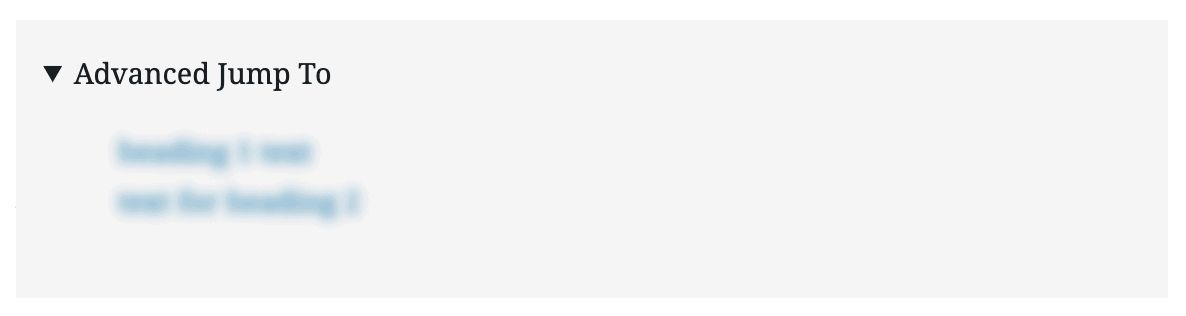
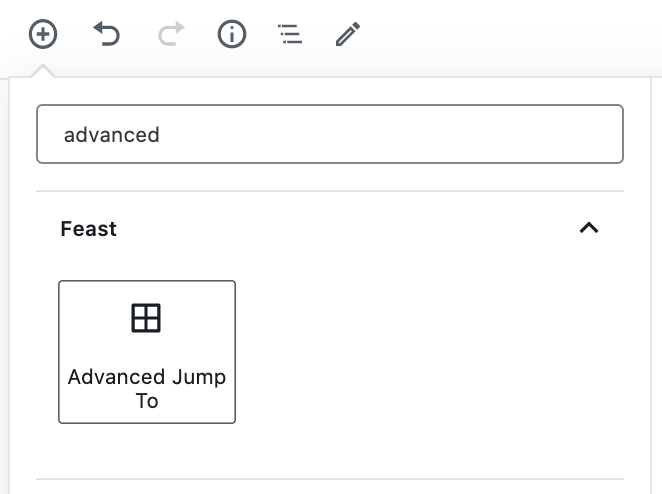
To access it, click the (+) button in the block editor and search for "advanced":

We do not recommend displaying this above-the-fold. Your posts should start with an introductory paragraph for the reader, followed by an image of the finished recipe (also below the fold), and then the jump links.
Why is it blurred in the block editor?
As noted above, the Advanced Jump To block will be blurred out in the block editor. This is the correct behavior.
Adding functionality to the block editor to read, display, and update the headings in real time would add a ton of javascript that would bloat the already-bloated block editor even further.
If you follow the guidelines (below), then it's unnecessary to have to review it while editing, and you can simply view it live.
You can also click the circular ℹ️ button in the block editor to view the live document outline:

Styling
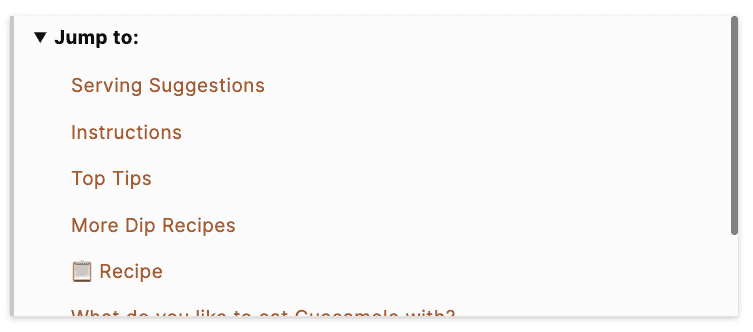
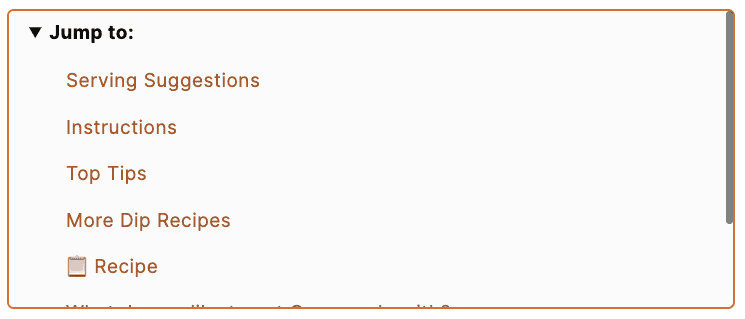
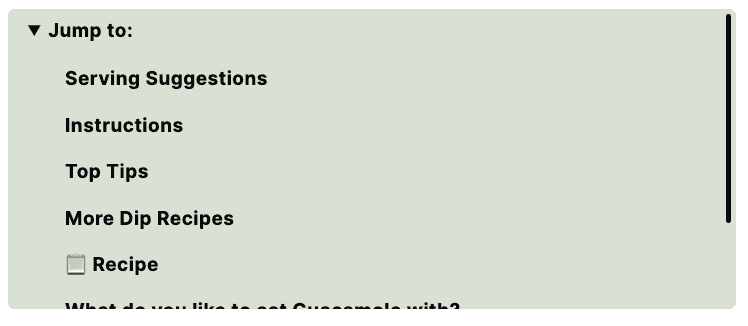
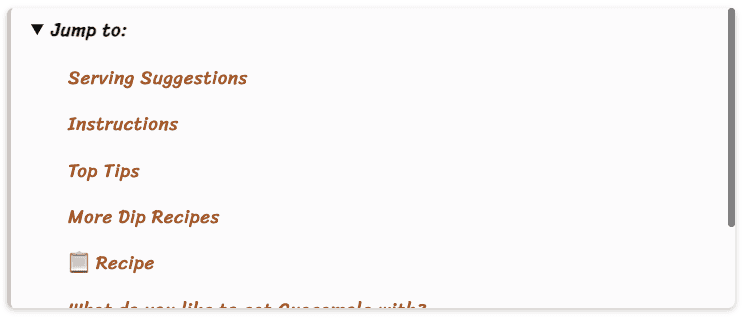
You can unlock additional styling options via Feast+, which lets you set a site-wide style on a number of blocks that help you create a coherent brand image.
Feast+ styling is automatically applied to the Advanced Jump To block. The style is determined by the style you select under "Advanced Jump To" on the Feast+ Branding page.


Guidelines
We've created a modern guidelines for page headings.
It's critically important that you re-learn how to write headings, because almost nobody in food blogging does this correctly. Headings are a topic that simply have not received any attention before we wrote the modern guidelines for page headings.
These guidelines are for accessibility and SEO compliance:
- do not use headings for styling text
- do not use headings for full sentences
- write your headings as "section" headings
- write headings for screen readers, and avoid acronyms
- do not use your keywords in your headings
- ignore Yoast's recommendations - they're outdated
- do not use too many headings - aim for 5 to 10
- use headings sequentially
- personal recommendation: recipe posts don't benefit from using anything aside from h2
See the modern guideline for page headings document for additional details.
Why use it?
We wanted to make food blogs better for the reader, and one of the most popular recent UX (user-experience) changes was the presence of "jump to recipe" buttons.
While it's a great feature, it doesn't come close to the full potential.
All heading tags on a page, not just recipes, can contribute to a better user experience. Google even has an entire section on headings in their SEO document.
Automated page jumps
The WordPress document on page jumps explains the why and how to do it. It also goes more broadly by the name "anchor links".
These are unquestionably a huge UX (user experience) benefit to readers, but are traditionally tons of extra work.
Extra work that we know you don't have time for. Not only would you have to add an id tag to every heading on the page, but you also have to then link to those headings.
That's why doing this in an automated way makes sense.
Technical note: we make use of the WordPress core sanitize_title() function, which is how your post title slugs are built by WordPress. We also perform a little pre-cleaning of the title, removing all characters that aren't letters (a-z), numbers (0-9), or spaces.
This is only applied to h2s.
Automatically insert into posts
We intentionally don't allow this to be automatically inserted into every post, like some other plugins do.
This is because no site we've ever seen has properly used h2s from the start. This means that some posts on every site:
- use a paragraph in a heading
- overstuff the keywords into headings
- incorrectly use h2s where h3s should be used
- don't follow Google's guidelines on headings
- don't follow accessibility guidelines on headings
While automatically inserting the Jump To would be more convenient for most posts it would cause major issues on other posts. The posts that have major issues could contribute in an unhelpful content penalty that then negatively affects the entire site, including the top ranking posts.
Ultimately, using the Advanced Jump To needs to be done as part of a broader recipe post update, which includes fixing and correctly using headings to comply with Google and accessibility guidelines.
Why only h2s?
The decision to exempt everything except h2s was done to keep the page navigation menu focused and comply with both Google's Webmaster Guidelines and screen reader preferences.
Use heading tags where it makes sense. Too many heading tags on a page can make it hard for users to scan the content and determine where one topic ends and another begins.
Do not overuse headings. In most cases, content editors will not need more than <h2> rank headings and the occasional <h3> rank.
The fact is that 99% of recipes simply don't need anything more fine-grained than h2s.
You can still use h3s and below if you think you need to, they just won't show up in the jump to menu.
Expanded "jump to" menu
If you've ever taken a hard look at the keywords that your recipes get in Google Search Console, you'll see that visitors don't come to your post looking for just one thing.
There's hundreds of different queries about a recipe you've posted, that your readers could have questions about.
In keyword research, this is known as the "long tail", and it's loooooong. The primary keyword on well ranking posts sometimes drives less than 30% of the traffic.
Your actual recipe is the star of the show, which is why the "jump to recipe" button has thrived.
But they also want to know about:
- ingredients
- instructions
- cooking time
- calories
- substitutions (turkey, chicken, beef, pork, lamb)
- scaling the recipe up, or down
- variations (how to make: keto, paleo, gluten free, whole 30)
- how to store it
- how to freeze it
- how to reheat it
- related recipes
This isn't just a great user experience, providing a one-stop-shop for all things about that recipe, it's also beneficial for search engines.
Adding headings addressing these questions and long tail keywords means that your article can show for more queries, getting you more clicks and pageviews.
See this post on click through rates.
Note: do not overoptimize your headings, exclude the primary keyword per the modern guidelines for page headings.
Search engine benefit
"Jump to" links are still (and may always be) a result of in-content post structure.

From an SEO perspective, keyword usage in the page title is still a good practice, but do not do this for heading tags within the post. The heading here is actually incorrectly done, and shouldn't be using the primary keyword.
Your heading tags are headings for your readers. Anything you read about heading tags having to exact match keywords is long outdated - stuffing keywords into heading tags will not make you rank higher.
What this will do if properly implemented (see: word of caution below), is make it possible to generate additional links on your search engine listing.
This means that instead of a single link that may not match a user's query, they're presented with anywhere from 1-3 additional text links that may catch their attention or draw them in.

Not only does this make it seem like your post is more thorough, using good headings means you can pull people in with questions they may not even know they had.
This generates additional clicks for the same post, leading to more pageviews.
Examples
What does this look like in the real world?
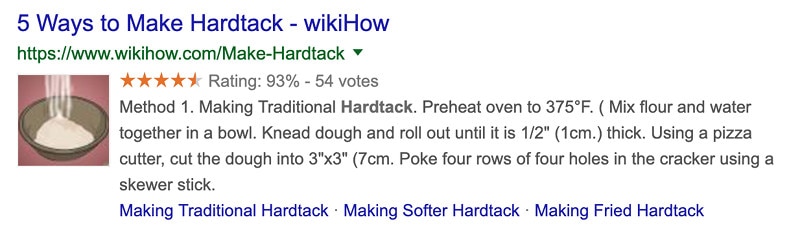
I have no idea what hardtack is, but I do want to know how to make it soft vs. hard, or fried. Note: the above is actually poor use of heading tags, as the primary keyword is repeated in the heading (don't do this!)
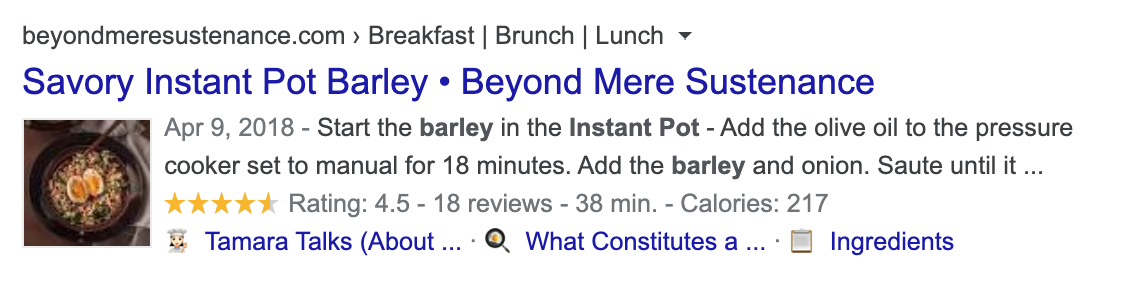
Another example with some emojis, and a useful direct link to ingredients.
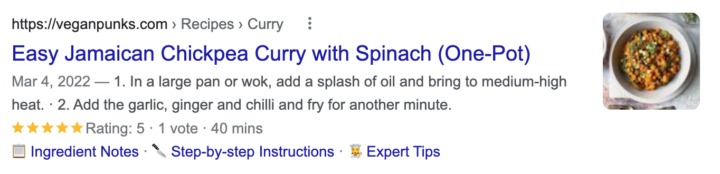
You can also generate headings with emojis, which are more eye catching and could lead to higher click-through-rates (see further below):
Rewrite your heading tags
This feature requires that you've been responsible with your usage of heading tags. In most cases, you'll want to rewrite the heading tags using our modern guidelines for page headings.
Casey Markee has pointed out that some questionable SEOs have recommended putting entire sentences and paragraphs into h2 tags.
This is absolutely not a valid thing to do.
Headings should only be used to break your content into more easily-consumable chunks, centered around the sub-topic introduced by the heading.
There are also conventions to follow when using headings, such as only capitalizing the first letter:
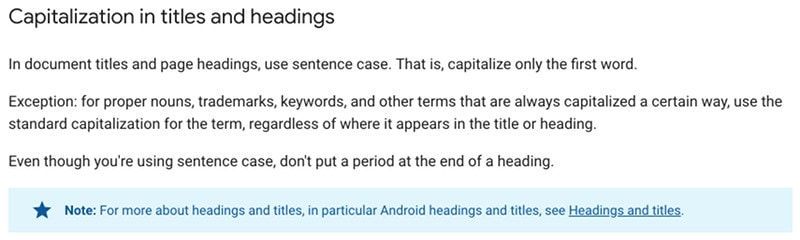
From: https://developers.google.com/style/capitalization
How does a link to an anchor (page jump) affect SEO?
Should you be concerned if people begin linking to a specific part of your page? eg. https://yoursite.com/your-best-recipe#how-to-make-it-paleo
No.
Google calls these parts of the links "fragments", and for the purposes of link equity they just count towards your main post URL.
A fragment (in this case, "#info") generally identifies which part of the page the browser scrolls to. Because the content itself is usually the same regardless of the fragment, search engines commonly ignore any fragment used.
Google also considers linking to headings as perfectly legitimate, and provides guidelines for how to use it: https://developers.google.com/style/headings-targets
Note: these are not the same thing as site links. You can not control site links.
Using the block editor
The Feast Plugin adds an "Advanced Jump to" block that makes inserting this into each post, easy:
For performance reasons, the block renders with placeholder content in the editor:
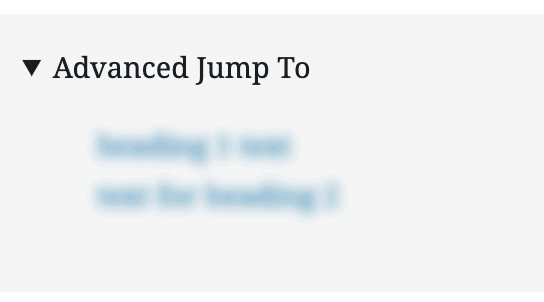
Then populates only on the front end.
Do emojis work?
Everything that isn't a letter or number if stripped, so emojis are fine.
As a best practice, we wouldn't recommend using these for headings in recipes.
Use emojis in headings to boost your click through rates!
Emojis are displayed in the anchor text, but stripped from the anchor link.
Replace the recipe card heading
By default, recipe cards output the recipe title as a heading, and this creates a keyword-stuffed heading that goes against best practices.
It also doesn't tell the reader it's the recipe card - it's just the post title, repeated.
Instead, we recommend using the setting in the plugin to insert the word "Recipe" or "Recipe Card" in the Feast Plugin settings page:

Note: this only works for recipe cards and not how-to cards.
Note that this auto-disables itself on posts that contain the word "roundup".
This is a more technically correct implementation that follows the "use short, concise headings" rule.
Roundup
If the post contains the word roundup (in text, or image file name, or image alt text, or anywhere) or it contains a recipe card roundup item, the "replace heading" feature will not work.
To fix this, remove the word roundup, or recipe card roundup item, from the post.
Link to the comments
In the Feast Plugin settings page, you can enable a link to the comments directly from the Advanced Jump To block:
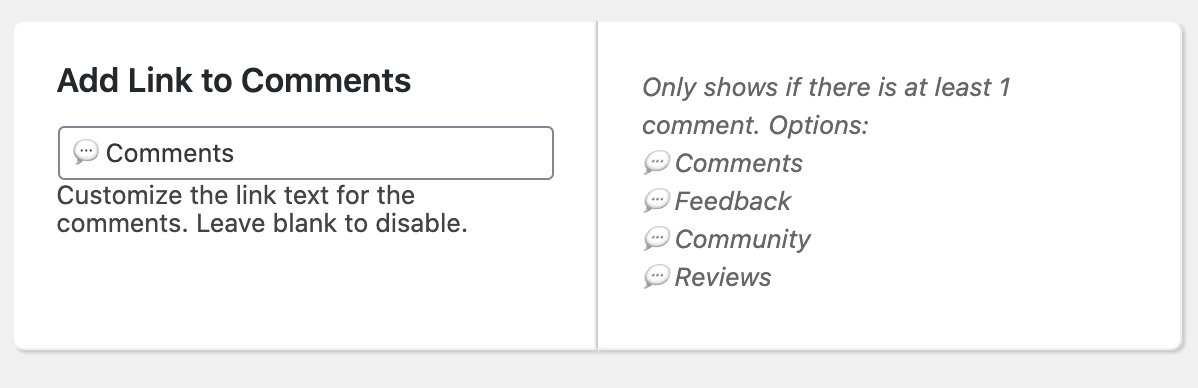
Default closed
There's an option in the Feast Plugin to "Default Closed" site-wide if you'd prefer the menu to load compressed. This will still generate jump to links in the search results.

Clicking on the block will then expand the menu.
We do not recommend using this setting as it will cause CLS issues. Instead, use the "max height" feature below.
Note: Defaulting closed on a single post is not possible.
Max height box + scroll
This option locks the Advanced Jump To at a specified height, and uses a scroll bar for any items that extend beyond that height. This prevents the table from becoming too large on longer posts, which can improve mobile usability.
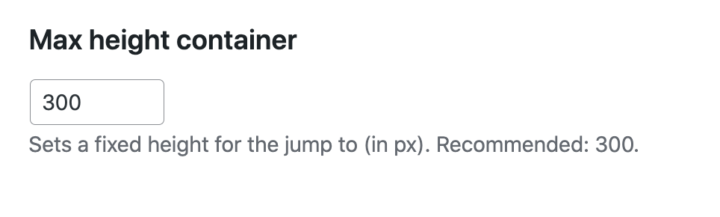
Accepted range is 100 to 500. Recommended: 300. Set empty to disable.
Note: for recipes, you should still keep the number of headings short and concise to comply with both search engine + accessibility best practices.
Non-english characters
By default, we strip out any characters that may cause unexpected behavior (anything that isn't A-Z or 0-9). In order to display non-english characters, you'll need to modify the behavior using a code snippet:
add_filter(
	'feast_clean_title',
	function( $_, $original ) {
		return $original;
	},
	10,
	2
);
We recommend testing this on a staging site before doing it on a live site.
Note: this will keep any existing emojis from the heading in the anchor text, which is untested and has unknown consequences. If you enable this setting, we recommend not using emojis in headings.
Google Search Console
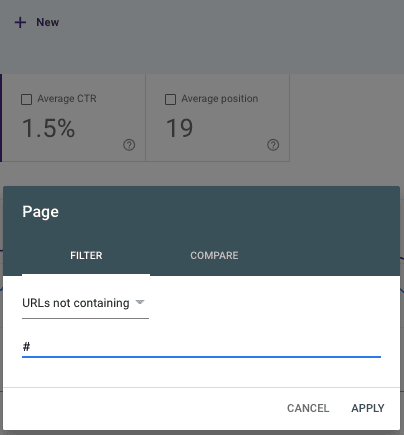
As Google indexes the jump-to links, they'll begin showing them in the search results and recording those links impressions+clicks, which can skew results.
You can filter these out of a report by choosing to exclude URLs containing a hashtag/pound (#):
Future development
We'll continue developing this based on feedback you provide. Among the things we need to know you're interested in are:
How this works on non-english blogs (eg. accented characters?)- Yes, as of 3.5.2 you can use any UTF-8 character, which should include non-english languages
- Screen readers - whether the "jump to" links should be tabIndex'd, have alt/title descriptions, or hidden
- We've made the decision to only focus on h2 at the moment, in order to keep the "jump to" menu at a reasonable size per SEO and accessibility best practices
- Making the table of contents sticky as users scroll, and/or integrating it directly into the header/menu bar
Should we automatically add jump to links for "Comments"?- Setting added to 3.6.0 to enable link to comments if 1 or more comments exist
Should we replace the recipe card titles with a more generic "Recipe" link?- Setting added to 3.6.2 to enable custom heading in place of recipe card title
- The heading "recipe" is better than repeating the post title, which can be confusing
Isn't this just a table of contents?
Yes.
And no.
While some other table of contents plugins are similar, we've designed this with built-in best practices based on Google and accessibility guidelines. This is a next-level approach that:
- creates fewer website errors: it doesn't use javascript so that page loading times aren't affected
- some other table of contents plugins build the table using javascript, slowing render times
- some other table of contents plugins use javascript to initiate an unnecessary "smooth scroll" effect that negatively impacts user experience
- additionally, some users have javascript disabled
- optimizes for SEO: it uses keyword-optimized anchor text
- some other table of contents plugins use non-user-friendly anchor text such as #heading-1, #heading-2, etc.
- optimizes for accessibility: it has best practices built in
- too many options aren't always good: too many headings are bad for screen readers and go against search engine guidelines for headings - h3s and lower generally aren't necessary for recipe sites
- provides a better user experience: it uses the fully-supported <details> html element to allow users to minimize the table of contents without javascript
Aside from some technical differences, we don't think of this as simply a table of contents. You should think of this as a way to expand on something visitors already love: jump to buttons.
We mentioned above that the long-tail for successful recipe posts is huge, sometimes accounting for over 50% of the traffic. Following modern guidelines for page headings directly helps that long-trail traffic, providing a better user experience as well as enhancing your search engine listing with rich snippets.
Smooth scroll
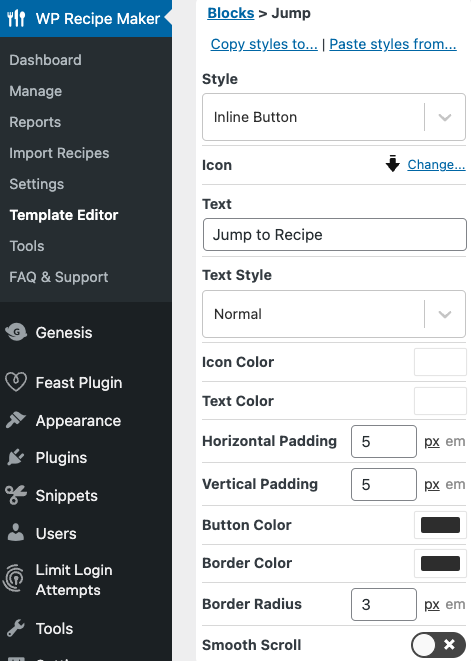
In the Feast Plugin, you can enable a CSS-only smooth scroll affect site-wide which will also apply to the Advanced Jump To links.
Note that this requires disabling javascript-based smooth scrolling from recipe cards or ad networks - see the documentation above for more details.
In WPRM, this is found in the template editor under the block settings.
In Mediavine, this is found in Settings > In Content Ad Settings > Enable Jump to Recipe Arrival Unit > Disable
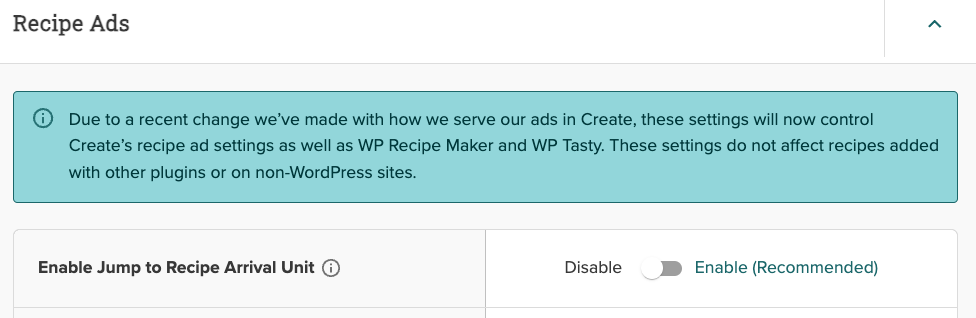
Note that disabling this can have a negative effect on ad revenue, but is a much much much better user experience.
Additional notes
- In version 5.5.4, you can now use non-English characters
- As of 3.6.2, we remove all existing IDs on h2 tags
- You can replace the "Jump To" text with a new setting in 3.6.0
- You can replace the recipe card link with custom text in 3.6.2
- You can filter the output using the feast_filter_advanced_jump_to filter as of 3.6.0
- Potential issue: we're not yet sanitizing duplicate IDs, and while the affected users for this would be extremely small (you've added your own custom IDs on non-h2 elements) and non-breaking (violates nerdy technical guidelines, but no display issues), it should be fixed in a future version
- In version 6.5.6 we removed h2 margin/padding originally used to ensure the heading was being displayed - this caused too many other problems
- In 10.3.5, you can now enable a CSS-only smooth scroll
Disable
In version 11.2.0 we added the ability to disable the Advanced Jump To output site-wide:

We do not recommend doing this, at this time.
This was in response to this video being spread around.
Currently:
- there is no evidence ANYWHERE to support this
- there is evidence to the CONTRARY, where sites with TOC or the Advanced Jump To have increased in traffic
- TOCs / Advanced Jump To are a good user experience
- if this turns out to be valid, and Google fixes their issue, you'll be left without a user-friendly enhancement
Removing TOCs or the Advanced Jump To is a knee-jerk reaction to an unsubstantiated claim. We strongly advise against this at this time.
Note: this will not remove the Jump to Recipe button from the recipe card, or the jump to comments link in the post info.
Note that Google stores up to 20 crawled caches of a page, so any effect from this would take weeks to see.
However, we want you to feel like you're able to make your own, educated decision.
We released this feature/update to allow temporarily removing the Advanced Jump To without having to go edit every piece of content, with the risk of eventually having to re-add them down the road. If you still feel compelled to remove your Advanced Jump To, against our recommendations, the option is there.