
Automatic Trending Posts keeps the trending recipes on your site up to date for you. Every few days, the Feast Plugin checks which of your posts got the most clicks from Google search over the last 30 days, and puts them first in any Simple Recipe Index (FSRI) block that's sorted by Post Order:
- links your best-performing posts from your homepage, sidebar, recipe index and about page
- reinforces the posts that are already doing well in search
- replaces hand-picked Post IDs, so there's nothing to update by hand
It requires the free Site Kit by Google plugin to be installed, active and connected to Google Search Console. Automatic Trending Posts is included with every Feast Plugin license, except Feast Plugin Starter.
Jump to:
Why it helps
Every site should link to its trending posts. Internal links show search engines which pages matter most on your site, and a "popular recipes" section that appears on every page is one of the clearest ways to do that. On the Food Blogger Pro podcast, SEO consultant Casey Markee calls this kind of section a "strong reinforcement signal" for your best content.
The posts that already get clicks from Google are the ones most worth reinforcing. Keeping them linked from your busiest pages helps them hold their place in search, and those rankings bring in the readers who see your ads. Every reader who clicks through to another popular recipe is another page of ad impressions.
It also takes a chore off your list. Keeping a trending section current used to mean looking up your top posts, pasting their Post IDs into each FSRI block, and doing it all again as the seasons changed. Automatic Trending Posts does this for you on a schedule.
Why it uses Google search clicks
Posts are ranked by their clicks from Google search, as reported by Search Console: the number of times someone clicked through to that post from Google's search results.
Traffic from Pinterest, social media and email isn't counted. Those readers don't find your posts through search rankings, so internal links don't change how much of that traffic a post gets. Search traffic is the traffic internal linking can actually help, so that's what the ranking is based on.
Where to find it
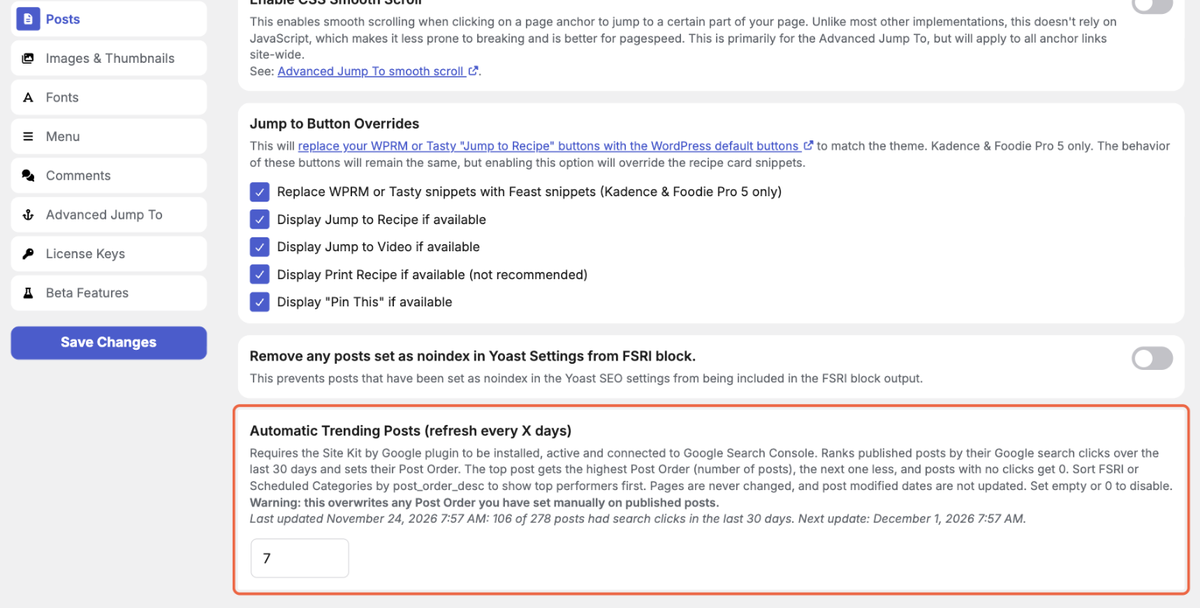
The setting is at Admin > Feast Plugin > Settings > Posts > Automatic Trending Posts. On some sites the Feast Plugin menu is named after your theme, for example Feast Kadence.
How it works
- Every time it refreshes, it looks at your Google search clicks for the last 30 days.
- The post with the most clicks gets the highest Post Order (the number of published posts on your site), the next post gets one less, and so on.
- Published posts with no clicks in the last 30 days get a Post Order of 0.
- Only posts are ranked. Pages, like your homepage, about, contact and recipe index pages, are never changed.
- The last updated date on your posts isn't changed.
- Under the setting, you'll see when it last ran, how many posts had search clicks, and when it will run next.
- If Site Kit can't return your Search Console data (for example, it has been disconnected), the error is shown under the setting, your Post Order is left as it was, and it tries again a day later.
- Turning it off stops the updates and leaves your current Post Order in place.
Automatic Trending Posts overwrites any Post Order you've set by hand on published posts. If you use Post Order to arrange posts yourself, leave this setting off.
Set it up
- Install and set up Site Kit by Google by following Site Kit's own setup guide. Search Console is connected for you as part of that setup.
- Go to Admin > Feast Plugin > Settings > Posts.
- In Automatic Trending Posts, enter how often to refresh, in days. We recommend 30. If your traffic is seasonal (holiday baking, summer grilling and so on), use 14 so your trending posts keep up with the season.
- Click Save Changes. The first update runs within a few minutes on most sites. Reload the page to see when it last ran.
- Set your FSRI blocks to show your trending posts (below).
To turn it off, empty the field (or enter 0) and click Save Changes.
Show trending posts with the FSRI block
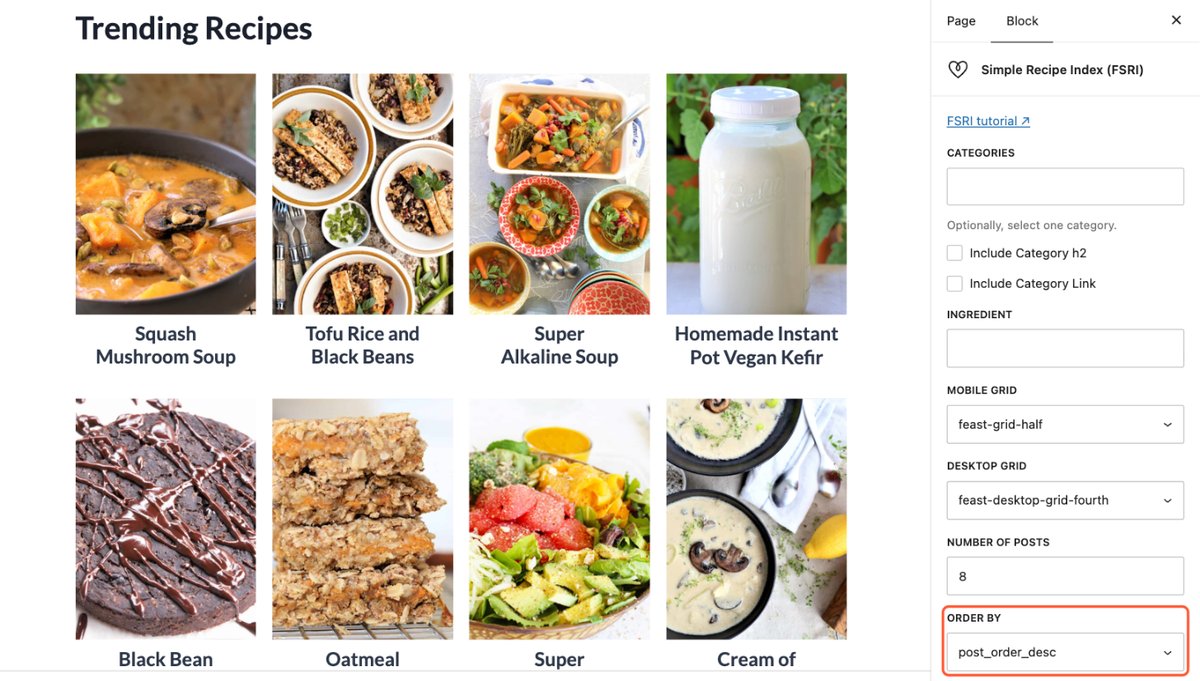
Use the Simple Recipe Index (FSRI) block anywhere you used to show trending recipes by adding Post IDs. We recommend:
- homepage: 8 posts
- sidebar: 4 posts
- recipe index: 8 posts
- about page: 8 posts
For each block:
- Edit the page (or your sidebar widgets) and select the FSRI block, or add one with Block inserter (+) > Simple Recipe Index (FSRI).
- In the block settings, set Order By to post_order_desc. This shows the highest Post Order first.
- Set Number of Posts.
- Empty the Post IDs field. Post IDs always override Order By, so the block keeps showing your hand-picked posts until this field is empty.
- Save the page.
A few tips:
- To show trending posts from one category only, select it under Categories.
- Exclude Previous is on by default. It skips posts already shown by FSRI blocks higher up on the same page, so your trending block won't repeat them.