
Our themes come pre-designed for SEO as best as they can be, but we cover only a fraction of what it takes to compete in search in rankings. Functionality does not belong in themes.
SEO features belong in specialized plugins like Yoast, and pagespeed optimization from specialized plugins like WP Rocket. These plugins require constant updates to stay compatible with changes.
New! Visit the Feast Plugin's Setup page to auto-configure WP Rocket to our recommended settings.

With the settings in place, your job is to do keyword research to find content people are looking for, and write high quality recipe posts with well formatted headings that meet those needs.
Below, you'll find our recommended settings for these plugins.
Jump to:
WordPress + Genesis settings
The default WordPress setup isn't optimal for search engine crawling and indexing. This leaves a lot of bloggers - especially new ones - unable to compete with sites who have spent the time to properly optimize their site.
Below is a list of changes we recommend making:
- For new blogs: Change date-based URLs to post-name in Admin > Settings > Permalinks
- Note: for existing blogs with a history, you'll want to do this carefully, and set up 301s - or not at all. We recommend hiring an SEO expert to manage this.
- See this overview from Yoast
- If changing to non-date-based URLs, make sure to use this service from iMark Interactive to fix your automatic redirects.
- Note: You'll also need to update your manually-written internal links
- Add content to your category pages
- Set up Google Analytics
- Set up Google Search Console
Set your preferred domain to non-www- As of July 2019, Google has merged these all together
- Enable SSL (via your web hosting company) and enable forceful redirect to HTTPS
- Forcefully redirect all pages to non-www for shorter URLs, which help with click-through-rates in Google
- This is more important for new bloggers than established bloggers, but existing bloggers should be forcing people from one version or the other to avoid spreading links and content across two subdomains
- Disable pingbacks in Admin > Settings > Discussion > Attempt to notify any blogs linked to from the article
- Pingbacks are nofollow, which provide no value to you
- Disable pingbacks in Admin > Settings > Discussion > Allow link notifications from other blogs (pingbacks and trackbacks) on new articles
- Pingbacks are nofollow and provide no value to readers, and are mostly spam
- Disable avatars in Admin > Settings > Discussion > Show Avatars (unchecked)
- Avatars provide no reader value, and slow down pagespeed by loading third-party images (gravatar)
Note: this may break the user-profile widget in the sidebar, replace it with a custom html user profile widget- Make sure you're using the Modern Sidebar
- Admin > Settings > Reading > Blog pages show at most > 20
- despite this being called "blog pages", it actually sets the number of posts on archive pages (eg. categories)
Feast Plugin
- Set your "Edit Post Info" using our default recommendation with published, modified and author link
- Set your author link
- Enable system fonts
- Follow our Recipe Update Checklist when updating posts (print it off if necessary)
- Set the "Number of posts to display in categories" to 20
- Make sure this matches the Settings > Reading > Blog pages show at most > 20
Mediavine + AdThrive
Go into Mediavine and AdThrive settings and enable their lazyloading and CLS optimization settings.
Yoast SEO Plugin
We recommend using at minimum the free version of Yoast, which handles a lot of the configuration and automatically applies best practices to your site and posts. We recommend making the following settings are enabled:
- Yoast > Settings > General > Site Features > Inclusive language analysis > Enabled
- Yoast > Settings > General > Site Features > Insights > Enabled
- Yoast > Settings > General > Site Features > Cornerstone content > Enabled
- Yoast > Settings > General > Site Features > Text link counter > Enabled
- Yoast > Settings > Categories > Show Categories in Search > Yes
- Note: remove the word "Archive" from the SEO title field
- Yoast > Settings > Categories > Show Tags in Search > No
- Note: Check Google Search Console to make sure tags pages aren't currently driving traffic
- Yoast > Settings > Categories > Show the Categories prefix slug > Disable
- New blogs only
- Note: Check Google Search Console to make sure these aren't currently driving a lot of traffic. Yoast will handle the redirects.
- Note: Hire an SEO expert when making permalink changes
- Yoast > Settings > Advanced > Author Archives > Disabled
- Yoast > Settings > Advanced > Archives > Date Archives > Disabled
- Yoast > Settings > Advanced > Archives > Format Archives > Disabled
- Yoast > Settings > Advanced > Breadcrumbs > Enable breadcrumbs for your theme > Enabled
- If not displaying, enable the "Add Yoast Breadcrumbs" setting in the Feast Plugin
- Yoast > Settings > Advanced > Breadcrumbs > Breadcrumbs for post types > Posts > Category
- Yoast > Settings > Advanced > Breadcrumbs > Breadcrumbs settings > Anchor text for the homepage > "Home"
- Feast Plugin > Breadcrumbs > Add the recipe index to your Yoast breadcrumbs
- Only for sites 100% dedicated to recipes
- Yoast > General > Knowledge Graph & Schema.org > Site Represents > Organization
- Yoast > General > Knowledge Graph & Schema.org > Organization Name > insert your site name
- Yoast > General > Knowledge Graph & Schema.org > Organization Logo > your logo, 1000x1000px + looks good on white background
- See the logo requirements from Google
- Note: this is entirely separate from the logo you set for your site navigation/header
- Yoast > Integrations > Wincher > Disabled
Note: if your blog has been active for a while, make sure to check in Google Search Console that these pages are not driving significant traffic.
We're also fans of purchasing the premium version of Yoast, which auto-handles 301'ing URLs when they're deleted or changed.
Here are some great articles from Yoast:
- How to Avoid Common SEO Mistakes
- Site Structure Mistakes to Avoid
- Copywriting Mistakes to Avoid
- Why Breadcrumbs are Important for SEO
Grow
We want to rely on Yoast for social / open graph integration, so we're going to disable the Grow integration.
- Grow > Settings > Misc > Disable Open Graph integration > On
Note that we're turning On the Disable feature because we want to use Yoast.
WP Rocket Plugin
WP Rocket is another premium plugin that's worth the investment. Pagespeed is one of the top ranking factors for blogs in 2024 and beyond.
New! Visit the Feast Plugin's Setup page to auto-configure WP Rocket per our recommended settings.
File Optimization
- Settings > WP Rocket > File Optimization > Minify CSS Files > Disabled
- Settings > WP Rocket > File Optimization > Optimize CSS delivery > Enabled
- Also select Remove Unused CSS
- Settings > WP Rocket > File Optimization > Minify JavaScript Files > Disabled
- Settings > WP Rocket > File Optimization > Load JavaScript deferred > Enabled
- Note: this could cause odd behavior, or cause other javascript-heavy plugins to fail, so keep this in mind when using this feature
- Settings > WP Rocket > File Optimization > Delay JavaScript execution > Enabled
- Note: WP Rocket 3.9.0+ is not compatible with the classic theme menu, you must upgrade to the Modern Menu in the Feast Plugin
- See the full Delay Javascript tutorial from WP Rocket for other potential issues
- IMPORTANT: add the following to the "Excluded JavaScript Files":
analytics
gtag
gtm
ga
ads.min.js
adthrive
mediavine
slickstream
Media
- Settings > WP Rocket > Media > Lazy Load > Enable for mages > Enabled
- Settings > WP Rocket > Media > Lazy Load > Enable for iframes and videos > Enabled
- This currently works with Mediavine
- This currently works with AdThrive
- Note: our themes and plugin intentionally don't use iframes, videos or javascript to avoid conflicts with these types of things - any issue that may arise from enabling this setting would not be theme related
- Settings > WP Rocket > Media > Lazy Load > Replace youtube iframe with preview image > Enabled
- Settings > WP Rocket > Media > Image Dimensions > Add missing image dimensions > Enabled
Preload
- Settings > WP Rocket > Preload > Activate Preloading > Enabled
- Settings > WP Rocket > Preload > Preload Links > Enable link Preloading > Disabled
- Settings > WP Rocket > Preload > Prefetch DNS Requests > URLs to prefetch
- Add the recommend DNS prefetches from this source, removing any services/plugins that you don't use
See: why we don't recommend or support minification.
Autoptimize
Remove this - it does nothing if WP Rocket is properly configured.
ShortPixel
- Admin > Settings > Shortpixel > General > Resize large images > DISABLED
- Admin > Settings > Shortpixel > General > Compression type > Lossy
- This should work for most people, but you may need to tweak your process (make sure images look good on mobile)
- Admin > Settings > Shortpixel > Advanced > WebP Images > Also create WebP images for free > DISABLED
- Admin > Settings > Shortpixel > Advanced > WebP Images > Also create AVIF versions of the images > DISABLED
See the image optimization post for additional settings and details about images.
Pagespeed targets
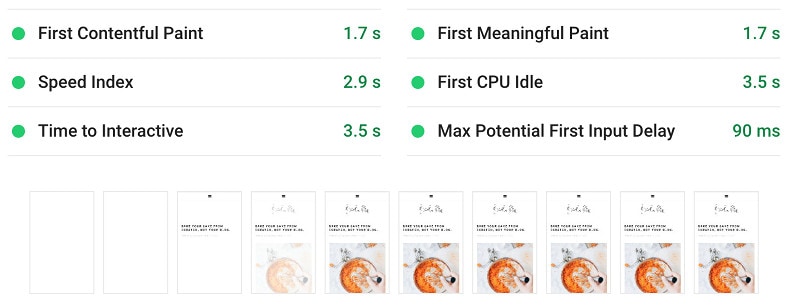
Use the Google Pagespeed Insights tool to benchmark your pagespeed - check both your homepage and posts.
You want to achieve:
- First Contentful Paint (FCP) = 2.0 secs or faster
- Speed Index (SI) = 3 secs or faster
- Time To Interactive (TTI) = 5 secs or faster
With ads:
- FCP = 2.2 secs or faster
- SI = 4.3 secs or faster
- TTI = 9 secs or faster (minimum) -- usually, we can get 7-8 with optimizations
Your server response time should be under 400ms. If it's not, contact your host. If they're unable to fix this, change your host.
You want to be hitting 70+ on the overall Pagespeed Insights tool - anything above this provides no SEO benefit.
Feast Plugin
The Feast Plugin has a number of user-first and SEO-centric optimizations built in:
- Modern Homepage fixes a number of SEO and accessibility issues
- Modern Mobile Menu to display more content above-the-fold
- Enabled, with mobile-specific logo and retina logo specified
- feast-modern-mobile-menu menu, built with mobile traffic in mind
- Enable the Modern Categories which are pre-optimized for post count and pagespeed
- Use the Category image Block to improve internal linking to your category pages on the recipe index
- Implement the System Font stack
Posts:
- Follow the Image Optimization Guide to ensure images are pagespeed and SEO friendly
- Follow the Modern Guidelines for Page Headings to optimize your headings for SEO and accessibility compliance
- Edit Post Info
- Include "Last Modified" info
- Include post_author_link
- Enable the Yoast Breadcrumbs and configure it properly
- Enable the Modern Previous Next which links to other posts in the same primary category
- Add the Advanced Jump To Links to your posts
- Use the Recipe Post Template to generate a post layout with an optimized content structure
- Comments -
Host
Two things that you want to ensure are done at the host level are:
- Force HTTPS
- this is automatic at any quality host, such as BigScoots Managed WordPress Hosting
- if your host requires an HTTPS plugin to do this, change hosts immediately
- Canonical URL redirects
- in the BigScoots WPO, this is found in Domains > Utilities > Canonical URL Redirect > Server side redirect forces visitors to https://
- note that we recommend everyone use https:// and not https://www.

Accessibility
Use the WP External Links plugin to mark external links as "opens in new window"

Internal links should not open in new windows.
Posts
We've released the Recipe Update Checklist as well as the Recipe Post Template in the Feast Plugin, which contains all of these and dozens more.

- Use alt text to describe the image for screen readers on every image
- Describe what's in the image + provide context
- Use headings as headings - not as text
- We generally recommend restricting your tags to h2 - use h3 if absolutely necessary, but never h4, h5, h6 unless it's a technical document
- Headings are used by Google and screen readers
- Avoid abbreviations and industry-specific jargon
- Use an 8th-grade reading level for your content
- Use correct anchor text - concise and description
- Do not use "Read More" or "Click Here"
- Link to the page title or text you want to draw attention to
Review the Google SEO Starter Guide.
Food-Blog Specific Configurations
"categories" and "tags" are general WordPress functions, which can be co-opted for additional functionality in food blogs.
The category pages should be thought of as a sort of "recipe index", grouping similar recipes together.
Tags are often used as ingredients, and can be used to sort other recipes by major ingredients. Because the quantity of tags tends to blow up (with a dozen+ ingredients per recipe), tags should be noindexed in Yoast per the instructions below.
As of 2021, we actually recommend just deleting tags altogether.
Evaluating Food Blog Recipe Quality
Head over to our Recipe Quality Guidelines for Food Bloggers post to learn about the different facets of your blog that search engines find valuable.
SEO Articles for Food Bloggers
We recommend following the advice in the following resources:
- Casey Markee on SEMRush
- Casey Markee on DishingWithDelishes
- Casey Markee on FBP
- Casey, Andrew and Arsen on SEO tips for publishers (video)
- Google's guidelines on creating high quality sites
Stay on top of SEO, pagespeed and compatibility updates via the newsletter!
Quality rater guidelines
We recommend reviewing Google's Quality Rater Guidelines periodically to get a sense for what Google is looking for when evaluating a site.
We also recommend reading the Google Core Updates post to see whether your site meets the questions/objectives posted therein.