
Images are an essential part of recipe posts and can have far-ranging impacts on user experience, site-speed, SEO and accessibility.
Jump to:
- Pre-upload optimization
- JPG
- Uploading
- Alt text
- Captions
- Titles
- Descriptions
- Post-upload optimization
- Shortpixel
- CDNs
- Inserting images into posts
- First image of post
- Focal point
- Featured images
- View featured image in admin
- Set featured image via post image
- Text on featured images
- Upscaling featured images
- Editing images in WordPress
- Lightbox
- WordPress gallery block
- Images in search results 101
- Text on images
- Missing image dimensions
- Help! My images are blurry
- Thumbnails
- Regenerate thumbnails
- Default thumbnail size
- Force thumbnail ratios
- Default featured image size
- Irregular thumbnail sizes
- Thumbnails on category pages
- Viewing registered thumbnails
- Reducing total thumbnails
- Deleting unregistered thumbnails
- Naming images
- Image sizes
- WebP
- AVIF
- Native lazyloading
- Collages
- Old images
- Hotlinking
- Featured posts widget
- Photography
- WordPress Big Images Threshold
Pre-upload optimization
Images should be optimized before uploading using your normal photo editor. Our recommendation is to upload in-content images at 1200px width (height doesn't matter).
For featured images, use 1200x1200.
Lightroom is currently the most popular application, followed by Photoshop. GIMP is a free photo editing alternative.
The current best practice is to export at about 80% quality setting, aiming for a file size less than 250-kb.
Note: Do not use the any settings that "force" the output of a certain image file size.
JPG
Featured images and in-post images of food must be JPG.
The only use case for PNG images are logos or graphics (not photography). There are known issues with how WordPress or lazyloading handles PNG files.
You can safely use JPGs in all cases and ignore PNGs completely.
We do not recommend or support WebP. AVIF is a superior format to WebP but is not widely supported and not recommended.
Uploading
Images should be uploaded directly to the media library, not the post itself. Then set the alt text directly in the media library.
This is because:
- setting alt text set in the media library then pulls that alt text into images that are inserted into posts
- uploading and setting alt text in a post does not copy that alt text to the media library
You need alt text on images in the media library in case those images are ever re-used in other posts, or by themes/plugins that display and link images.
Alt text
Do use alt text.
The Alt text (the alt attribute on an image tag) are required to comply with accessibility requirements. People have been sued over not having alt tags.
In the block editor, this is found in the right-hand block settings as Alt Text (Atlernative Text) when you've selected an image:

Alt text is used only to describe the image contents to screen readers. They have no impact on SEO and should not be keyword stuffed.
See this document on image concepts from the w3c accessibility guidelines.
The exception to this rule is when images are for decorative purposes only, in which case the alt tag should be empty, which is the case for the FSRI block and a logo. If the images are part of the content (eg. process shots, finished recipe shots) then they require an alt tag.
Here's an alt text decision tree from w3c on how to decide what to put into the alt attribute.
For your convenience, we've added the ability to see images missing alt text in the Media Library (list mode view) by enabling it in the Feast Plugin:

NOTE: setting alt text in the library does not change any alt text in images that have already been inserted into posts - it only applies to images inserted after the alt text has been set.
Adding alt-text to the media library is a best practice - every image should have alt text - but will have no impact on images already in a post.
In order to find images in posts that are missing alt text, use the free alt text tools plugin from NerdPress.
Captions
Don't use captions. These provide no value in blog posts.
Titles
Titles should be related to the post keyword.
See this guide from Google and this guide from Yoast.
Descriptions
Don't use descriptions. These provide no value in blog posts.
Post-upload optimization
We only recommend running either:
- Shortpixel (Lossy setting)
- Imagify
These are both paid plugins, but are relatively inexpensive.
Do not use Shortpixel Adaptive Images plugin - this is a CDN+WebP that causes major issues.
Post-upload optimization is required for the thumbnail images that WordPress builds from the original file you upload. It can further reduce the thumbnail size by 20%-25%.
Other plugins that perform poorly relative to the above, and are not compatible with our setup, include:
- Smush
- SG Optimizer (Siteground)
- Jetpack
TinyPNG counts as pre-upload optimization, not post-upload optimization. You need both pre and post upload optimization.
Shortpixel
For shortpixel, make sure that both "Enable SmartCrop" and "Resize Large Images" are OFF.
Note: Use the Admin > Feast Plugin > Setup page to automatically configure this for you.

Also make sure that "Next Generation Images" are OFF:

CDNs
A CDN is a "content distribution network" that has valid benefits, including offloading bandwidth from your server and sometimes offering image optimization, when managed correctly.
Jetpack, Shortpixel, WP Rocket and Cloudflare offer image CDNs that you must not use.
Do not use a CDN, period.
These are extremely technically complex and create 10x more headaches than they solve.
There is simply no benefit to using a CDN prior to hitting 100,000 pageviews/month, at which point you hire a technical support team like nerdpress to manage it for you.
Inserting images into posts
NOTE: always upload images to the media library and set the alt text there, before inserting them into a post.
When inserting an image that's been uploaded at 1200px (height doesn't matter), make sure to select "Full Size".
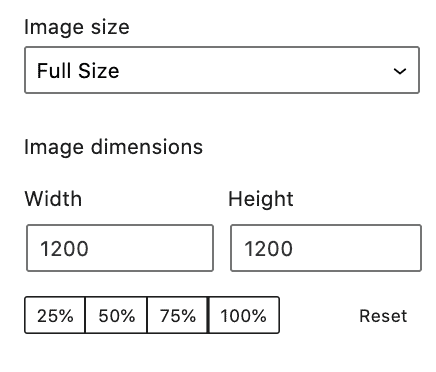
Do not set a %, if it has been set, hit "reset".
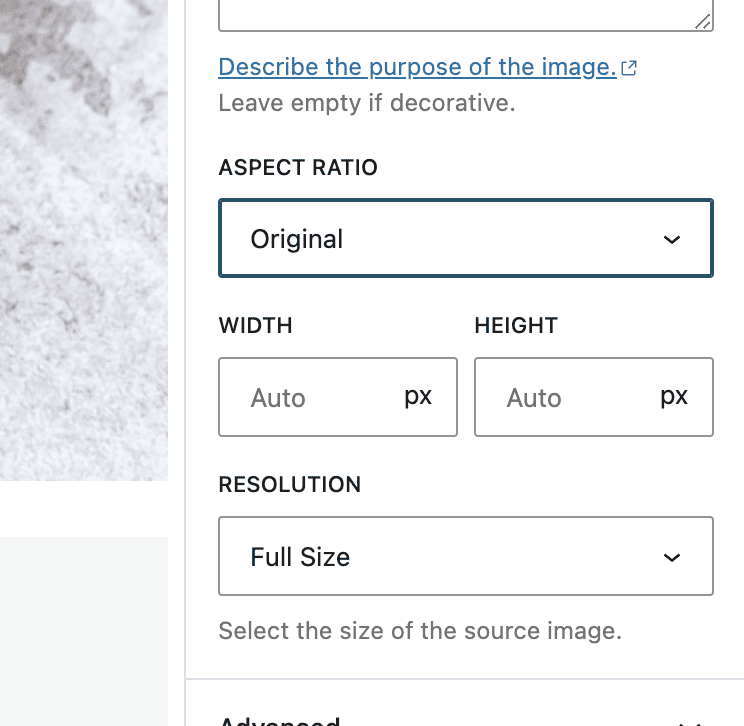
Major update in WordPress 6.3: they've renamed the "Image Size" field as "Resolution" and this should always be set to "Full Size". We recommend ignoring the "Aspect Ratio" and "Width"/"Height" fields.
There are 3 things you want to make sure are done when inserting images:
- image alignment is set to "center" (because you don't want text wrapping around an image)
- image size is set to "full" (because thumbnails cause long-term maintenance issues)
- image link is "none" (because you shouldn't link images to themselves)
With the Feast Plugin, you can set these defaults:
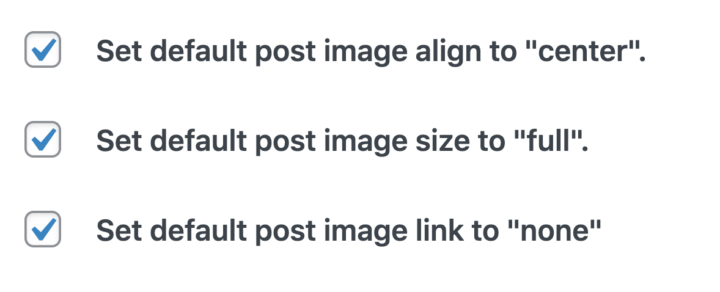
Note: this doesn't affect images already inserted into posts, only images added to posts moving forward.
Once upon a time you had to select the appropriately sized image for pagespeed, but this is no longer the case, and you should insert at full size.
First image of post
The first image of the post skips being lazy loaded - this is a tradeoff between two pagespeed metrics and is generally best.
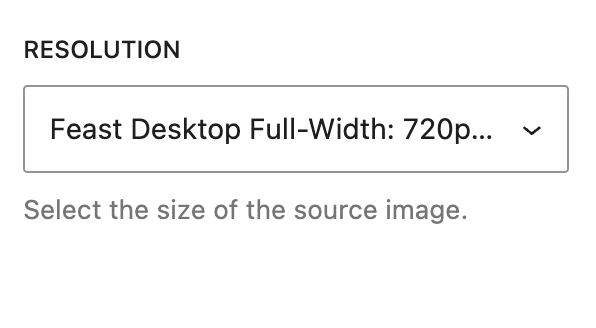
However, that means that you want to make sure the first image is inserted not full size, against our recommendation above.
To do this, set the image's resolution property to Feast Desktop Full-Width: 720px wide:
Focal point
Do not use the "Focal point" feature in the block editor:

Always always always crop and optimize your images before you upload to your website and insert it without changes.
Featured images
Featured images should always be uploaded at 1200px width (see "rethinking the featured image" link below). This can be either:
- 1200x1200 or
- 1200x1800 (native 2:3 camera ratio)
- Note that 1200x1800 does not comply with Google schema requirements and is not recommended - see below
The thumbnail image you decide to display on your site (square, vertical, horizontal) is based on the thumbnails that get generated from the featured image - not the featured image itself.
See the Google Article Schema requirements for articles.
See how thumbnails work to learn how thumbnails are cropped from the featured image.
thumbnails are generated from featured images, but don't need to match the featured image dimensions.
thumbnails are displayed on your site.
featured images are 100% for Google.
Featured images are not designed to be used in posts - they're meant to be used for:
- Google search results
- Homepage
- Category pages
Any image you want to display in a post should be manually inserted into that post, below-the-fold.
An older version of Cook'd Pro (and other themes) used to automatically inserted featured images above a post - this was an incorrect thing to do and no longer supported.
See: rethinking the featured image
View featured image in admin
With the Feast Plugin you can preview the Featured Image on the "All Posts" screen in the admin, to make it easier to know which posts need updating:

How to enable:
If the columns become cluttered you can modify them:
Note: we recommend not updating posts that are ranking in the top 3 positions for their target keywords.
Tip: if your columns begin overlapping, you may need to remove some less useful columns (such as Tags, Author) in the "Screen Options":

Set featured image via post image
WordPress 6.8 introduced a feature to allow setting a featured by selecting one of your post images. This is a poorly designed feature and will cause more harm than good.
DO NOT DO THIS.
As we outline above, Google's requirements for featured images are that they are 1x1, 4x3 or 16x9. The majority of images in posts are 2x3, which is not an accepted ratio for featured images.
Featured images must be carefully exported at the correct resolution. Do not ever use automatic WordPress features to crop, set or resize images, because WordPress fails to properly account for the necessary requirements.
Text on featured images
Never put text on featured images, period.
Search engines strongly avoid displaying images that contain text, except on the lowest competition queries.
Upscaling featured images
If you've previously uploaded featured images too small, or at the wrong ratios, and need to upscale them, you can:
- download the original full-size image
- scale the image up, setting the short side to 1200px, keeping ratios/proportions the same
- crop the long side down to 1200px
- the image should now be a 1200x1200 square
- apply a contrast and saturation filter to bring up the quality
Here's a quick video showing how this is done using GIMP:
We don't recommend using a plugin or on-site tool to modify images in your media library due to potential issues with image metadata.
Editing images in WordPress
WordPress comes with some very basic and frankly poorly developed image editing features. These image edits end up with different image names, meta data and quality issues that make maintenance much more difficult.
Do not ever edit images in WordPress.
Always upload pre-edited images to WordPress.
Lightbox
A light box is a feature that typically leverages javascript to show an enlarged version of a photo, with accompanying images.
We don't support, and actively recommend against, all lightbox features.
This is because:
- javascript slows pagespeed
- javascript can break if other javascript on the page breaks (VERY COMMON with ads)
- 80% of pageviews are mobile, which display images at full screen width already
Using a lightbox means that you're slowing pagespeed, introducing potential breakage, and is completely irrelevant to 80% of pageviews.
WordPress gallery block
The WordPress gallery block introduced a lightbox feature called "Expand to Click" in WordPress 6.8, which we strongly recommend against and do not support due to the reasons outlined above.
In general, gallery blocks should be avoided in favor of column blocks as outlined in the process shots tutorial.
Images in search results 101
When setting your featured image and recipe card image, it's important to understand that these result in two different search results.
The recipe card image controls the Google recipe carousel result, which display like this:
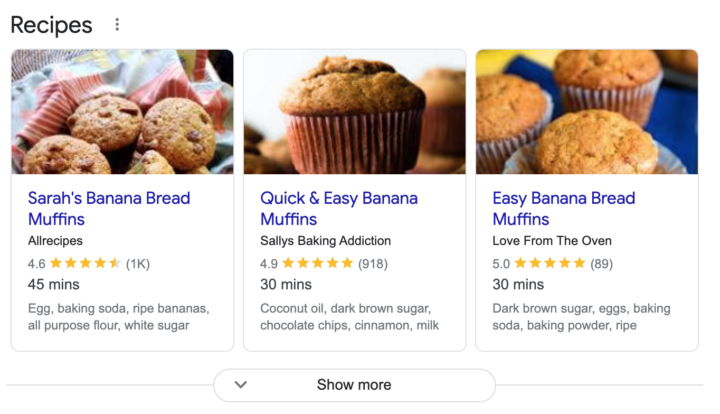
The post featured image controls the regular Google Rich search result, which display like this:

In the example above, you'll notice the same sites happen to be in the recipe carousel and rich search result, but this is not always the case.
If your rich result or recipe carousel images aren't displaying properly, this is typically because your image isn't properly optimized (1200x1200, high quality, file named properly).
If your featured image isn't showing up in Google, this is a known issue with Google. They have publicly stated repeatedly that this is working as they intend, and that it is a content quality issue. There are no known fixes for this and it is not a theme or Yoast issue. Google has simply decided that it's not worth displaying your featured image and there's nothing you can do about it, which is dumb.
Note: for a few days after you publish your post, the correct image typically won't show up in the search results because of how Google processes data on the back end. Don't do anything. Wait 1-2 weeks for this to fix itself.
We recommend using the same 1200x1200 image for both the post featured image, and the recipe card.
While you don't have to use the same image for the recipe card and featured image, there's no reason to do this. Both images should be the same: the best, most enticing image for users in Google.
Also see this image optimization webinar from TopHatRank.
Text on images
Google does not like text on featured images - do not embed text on featured images. Apparently Facebook doesn't either.
You can see this in action be searching for any competitive recipe keyword and seeing that none of them have text on images. The only exception to this that we've seen is when there's not enough results (low competition) AND there text-on-image is the only image on the page (Google has no alternative to pick from).
This is probably because the computing power required to process text on images (called "OCR" or "optical character recognition") is simply far too expensive for Google. They have to read + filter text to ensure it isn't offensive/harassment/illegal.
When Google creates their thumbnails to display in search results, the cropping and scaling results in text that's completely illegible. That represents an accessibility liability to them when displaying the featured image in their search results.
Text on in-post images should generally be avoided unless there's a specific, compelling reason to do so. One exception to this, is when labeling the ingredients in the "ingredient" shot.
Pinterest images should not be embedded into the post - this is an outdated practice. Use a plugin such as Hubbub to force pinning of a hidden Pinterest-only image.
Watermarks are a question mark - they may or may not create accessibility issues but Google would still prefer to not have to OCR them. In general, we believe watermarking images is a wasted effort as there are free tools out there that will automatically remove watermarks from any image.
Missing image dimensions
The Feast Plugin registers all the information needed with WordPress image functions using the Modern Thumbnails, and relies on core WordPress functionality for image output. WordPress does not automatically add image dimensions in all cases.
WP Rocket is used to add missing image dimensions, per the setting recommended in the SEO for Food Bloggers post.
Help! My images are blurry
90% of the time, this is because you're running two post-upload image optimizers, and the most common culprit is an external image host/CDN (eg. Jetpack, Shortpixel.AI).
This can sometimes happen because you've set the Shortpixel or Imagify settings too high. Try using a less aggressive setting to see if that helps.
We recommend Lossy for Shortpixel, and if necessary, downgrading to Glossy.
Note: images in the post editor sometimes appear worse than the front-end, only look at the images on the front-end.
- CMYK to RGB should not be enabled as we have no idea what impact this has and could be a root cause
- Overcompressed (eg. smaller) images won't display as well as uncompressed (larger) images - this comes at the expense of pagespeed.
- You can choose fast, or you can choose high quality, but you can't have both fully optimized. It's your choice to make.
If you want higher quality images you should set the default image size in the Feast Plugin to 720x960 instead of 360x480 but this will cause your pagespeed to drop. That's the tradeoff you need to decide on.
Thumbnails
Thumbnail sizes are registered by themes and plugins, depending on their intended use.
Every time you upload an image to your server, WordPress automatically creates a new image size for each thumbnail your themes+plugins have registered.
You can view the currently registered image sizes by going to Admin > Tools > Regenerate Thumbnails (requires the Regenerate Thumbnails plugin).
We recommend enabling the Modern Thumbnails in the Feast Plugin and disabling theme thumbnails. This ensures that your images remain the same size when changing themes.
We also recommend you update the default WordPress thumbnails in Admin > Settings > Media to:
- Thumbnail: 180x180
- Medium: 360x0
- Large: 720x0
- Medium-Large: 1200x0 (not accessible on media screen)
These settings will then match the Modern Thumbnails, reducing the number of images that get generated. This can save you money, and reduce the disk space needed to store unnecessary images.
Note: a zero-height means images will always be resized to match the width - the Medium, Large and Medium-Large thumbnails that come with WordPress are soft crops.
Setting both a width and height on soft crop thumbnails causes inconsistent sizing.
Once completed, this will reduce the total number of thumbnails generated on new image uploads.
Regenerate thumbnails
WordPress automatically generates additional images ("thumbnails") when you upload a photo. Over time, as plugins and themes change, the thumbnails required may be changed - added or removed - but the original thumbnails aren't automatically purged, and new thumbnail sizes aren't automatically added.
To fix this, you need to use a plugin to regenerate thumbnails for older images:
- Regenerate Thumbnails plugin if using Imagify, or
- Regenerate Thumbnails Advanced plugin if using Shortpixel (recommended)
You can choose to Regenerate only Featured Images in Regenerate Thumbnails Advanced if you only need to update your homepage + categories images:
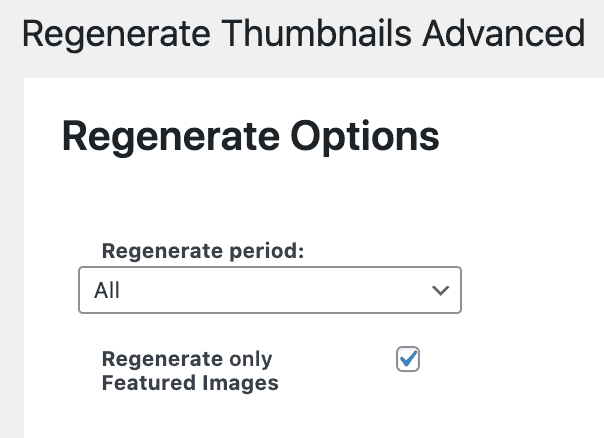
Make sure you DO "redo existing" and "SAVE SETTINGS".
Then check your homepage, category and posts to make sure the images are displaying consistent sizes.
Note: we don't recommend using "remove unregistered thumbnails" because this can break old images that were inserted at previously registered thumbnail sizes. This takes up more disk space, with the benefit of not needing to update every post you've ever written.
If you've accidentally deleted previous thumbnails and your images aren't showing, you'll need to edit your post, click the image that isn't showing, and change the "Image Size" from "Thumbnail" to "Full Size":
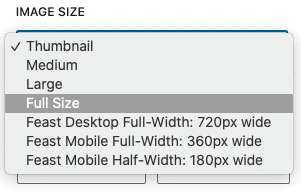
You may also want to checkout our our how thumbnails work guide.
Default thumbnail size
Make sure to set the default "Featured Image" thumbnail size in Admin > Feast Plugin > Images to the correct size for mobile optimization:

- if using portrait (vertical) thumbnails: feast-portrait-2x3-360x540
- if using landscape (horizontal) thumbnails: feast-landscape-4x3-480x360
- if using square thumbnails: feast-square-1x1-360x360
The reason we use the 360px width thumbnails is because in all our tutorials and recommended setup, all post "featured images" will display at maximum 360px width.
Note that this only affects on-site display and has nothing to do with Google.
This is 50% the content width with on desktop, and 100% of the content width (screen size) on mobile.
This gets used on the:
Hyper optimization: If you're REALLY trying to optimize for pagespeed and you strictly use the one-fourth display for all your FSRI blocks, you can even select the 180px thumbnail. You must be displaying 4-posts-wide on desktop and 2-posts-wide on mobile, across the entire site for this to work.
Force thumbnail ratios
This setting forces images to display at the specified 1:1, 2:3, 3:4 or 4:3 ratios in the FSRI block, and on category pages. This helps to ensure that images are consistently sized to avoid irregular white spaces, and irregular thumbnail sizes.

This serves more as a temporary band-aid, and best practices for featured images should still be followed.
Default featured image size
The image size used by the FSRI block (and category pages, Modern Sidebar and Modern Previous + Next) uses the Default featured image size defined in your Feast Plugin settings under the "Images" section:

It's important to have this properly set.
Irregular thumbnail sizes
This can be caused by a few issues:
- featured images uploaded that are too small for the thumbnail size you're trying to display
- How to fix: re-upload at 1200px x 1200px
- attempting to display thumbnails that no longer exist (eg. were removed during Regenerate Thumbnails, or a theme change)
- How to fix: select a different thumbnail size to display
- Setting a "default featured image size" too large
- see section above about using 360px wide thumbnail
- Need to regenerate thumbnails
- How to fix: See regenerate thumbnails below
- You can also enable the Force Thumbnail Ratio feature in the Feast Plugin (see above)
If text is appearing next to the image on the homepage or category pages, you've selected a thumbnail size that's too small. To fix this, select a larger default thumbnail size.
Thumbnails on category pages
We recommend enabling the Modern Categories, which use the default image size set in the Feast Plugin as well as an optimal layout for users, and enhanced search engine features.
This creates a consistent, site-wide experience that's better for branding.
Viewing registered thumbnails
You'll need the Regenerate Thumbnails plugin to do this.
Go to Admin > Tools > Regenerate Thumbnails
This page lists the thumbnails that are currently registered.
Reducing total thumbnails
Recipe cards are one source of thumbnail sizes:
- WP Recipe Make registers 3 total thumbnails
- Create Recipe Card registers 12 thumbnails
You can also update your WordPress image settings to "match" the Feast Plugin's Modern Thumbnails, which then automatically eliminates some duplication:
- Thumbnail: 180x180
- Medium: 360x0
- Medium-Large: 1200x0 (note: not editable normally)
- Large: 720x0
Note: "large" is set to 720 because that's the one available in the post editor, medium-large is not. The names are arbitrary and have no impact on the dimensions.
Note: thumbnails are a normal and necessary part of running an optimized food blog. The simple solution to "filling up disk space" or "having too many thumbnails" is to pay for more disk space. This costs a pittance (usually $10/month) compared to the cost to hire a developer ($100/hr+) to audit and manually optimize your image usage.
If you're at the point that this is becoming a concern, we recommend signing up for nerdpress for $359/month who can perform a comprehensive audit. If it's not worth paying them $4,308/year to manage your thumbnails (among other things), just pay your host for more storage.
Deleting unregistered thumbnails
In general we strongly recommend against deleting unregistered thumbnails (eg. ones you previously generated in old themes and plugins) when regenerating thumbnails.
This is because the images previously inserted on your site to display empty and ruin your posts and user experience.
The risk of this is simply not worth the cost of paying a little more money for hosting disk space.
Naming images
Properly naming images is critical for good SEO.
Best practices include:
- naming images after the content (recipe), with descriptive modifiers for each image (eg. finished, ingredients, preparation, cooking, oven, baked, cut, mixing, temperature, etc)
- using hyphens between words, not spaces or underscores
If your older posts didn't do this properly, simply make sure that you fix it for new posts moving forward, and replace older images following the recipe update checklist.
Image sizes
For simplicity sake, we've narrowed our image recommendations down to:
- Featured images: 1200x1200px or 1200x1800px
- Category images: 1200x1200px
- see tutorial for Category Images block
- In-content images: 1200px width, height does not matter
Do I need to re-upload everything at 1200px?
For in-content images, it's generally not necessary.
For featured images, your previous images may not comply with Google's current article schema or Google Insights requirements. So, unfortunately, the featured images should be updated if you care about meeting search engine best practices.
Our recommendation is to update the images as you're regularly updating post content, not to go in and update a post just to change the image.
Update: this has been built into the Feast Plugin's Recipe Update Checklist.
You can use the Enable Media Replace plugin to replace images without editing a post.
WebP
Various tools provide optimization and serving WebP images, along with Google Pagespeed Insights recommending it.
Currently, we recommend ignoring this entirely, and not enabling this anywhere.
Do not use any WebP settings, do not use any CDNs to serve WebP images.
Testing by Nerdpress has shown that the image file sizes are inconsistent - sometimes smaller, sometimes larger. It's also not supported by all browsers.
Unless you're on BigScoots with the site speed optimization upgrade ($17/month).
AVIF
Do not enable AVIF images.
Native lazyloading
Chrome introduced "native lazyloading" in 2019 and it looks like Firefox will support this in 2020.
However, Safari currently does not. Further, WP Rocket's testing shows it's actually an inferior solution to their own, which has been in development for years.
Much like WebP images, native lazyloading is an immature solution.
The only lazyloading solution we recommend or support is through WP Rocket.
Collages
In generally, we recommend against the use of collages or grouping images together. This is because:
- it moves descriptive text further way from the associated image
- it creates an unnecessary burden on the blogger to annotate the image for screen readers
- it reduces the number of potential images and different keywords that a recipe can rank for, and be associated with
Here's a video demonstrating how to turn a poorly optimized 3-column block of images with disassociated text, into a more user-friendly, SEO-optimized format:
Here's the source from Google's image optimization guide:

Old images
If you've been running a food blog for a while, you'll have followed the older recommendations to upload images at the size they're inserted (680px, 720px).
You'll simply want to upload at 1200px width moving forward (1200x1200 for featured images).
If possible, replace the older images with the larger size as you're normally updating you posts, using the recipe update checklist. You can use the Enable Media Replace plugin to replace the previous files so that the images aren't lost or deindexed.
Unfortunately we can't offer guidance or specifics on using this plugin, and recommend hiring Casey at Mediawyse for site-specific recommendations.
Hotlinking
Hotlinking refers to displaying an image on your site, directly from another site, instead of hosting it directly on your site. We strongly advise against this because:
- the hosting site can change the image to something malicious
- it can slow pagespeed
- the image may disappear due to link rot
All images that you display on your website should be self-hosted (uploaded to your media library) for pagespeed, user experience, and security reasons.
Images hosted on CDNs are not considered hotlinking.
Featured posts widget
The featured posts widget contains many accessibility issues, including duplicate links and using the post excerpt for image alt text. See: Modern homepage vs theme homepage.
No part of the Feast Plugin setup uses featured posts widgets, or any widgets.
We recommend upgrading to the Modern Homepage using the FSRI shortcode to resolve these issues.
We recommend not enabling pinning on all images, and instead, force pinning hidden pins. This can be done with:
We have no recommendations for Pinterest image size, format or optimization settings, because they're constantly changing. See:
Contact your Pinterest plugin provider for recommendations regarding Pinterest.
You can use Facebook's Best Practices for image guidelines.
Their requirements differ from Google's featured image requirements, but because Google is a higher traffic driver, we recommend adhering to Googles guidelines for the featured images.
Facebook will crop the featured image to fit into their requirements.
You can pre-cache a page by running it through the Facebook debugger tool.
See the Google Images Best Practices guide.
We would also recommend viewing this Google presentation on image best practices for search.
Photography
Photography isn't our area of expertise, so we recommend outside sources for best practices. There's lots of courses out there - some paid, some free. Here's where we'd recommend starting:
- Brooke Larke's 90-minute food photography crash course
- Joanie Simon's The Bite Shot on Youtube
- Amanda's Food Photography 101
Important! See how thumbnails work and the "focus zone".
If you're interested in what professional photographers charge and the quality expectations, see this youtube video on professional food photography rates.
Pixsy is a service that seeks monetary compensation from unauthorized image use.
WordPress Big Images Threshold
WordPress introduced a feature in 5.3 that was automatically enabled, which automatically downsizes images larger than 2560 px (either dimension).
We recommend installing the Disable Big Images Threshold plugin to disable this feature.
Per the pre-upload optimizing section above, do not upload images wider than 1200px.